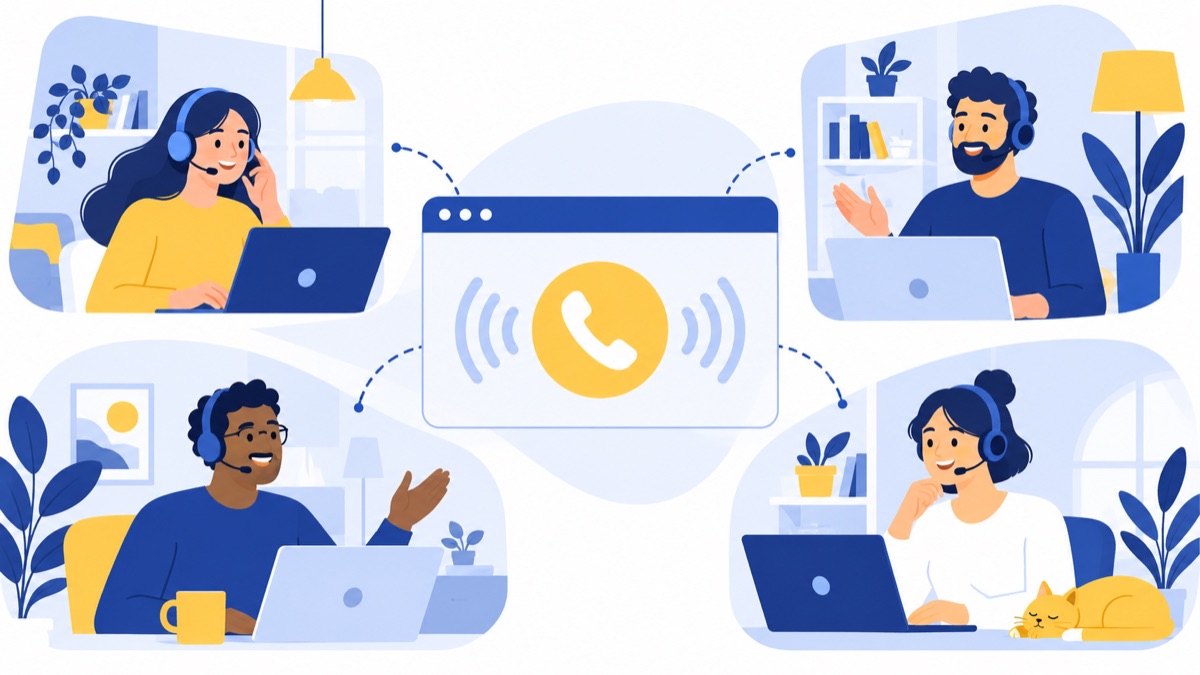
A browser-based business phone system lets remote employees make and receive calls through a supported web browser using a business number. For US teams comparing options, Voicalyst offers browser calling, while Talkroute, Quo, RingCentral, and Dialpad should be checked against their current documentation to distinguish in-browser calling from desktop or mobile apps and call forwarding. The right fit depends on the team's browser requirements, routing needs, integrations, and outage plan.
Key takeaways
- A browser phone places calls through a supported browser; browser-based account administration alone does not mean a service supports browser calling.
- A remote team should test caller ID, transfers, queues, voicemail, headset quality, notifications, CRM logging, and an outage fallback before porting its main number.
- Census Bureau data says 13.3% of US workers usually worked from home in 2024, a reminder that remote access remains relevant to business communications.
- FCC guidance says interconnected VoIP providers must explain 911 capabilities and limitations, so businesses should verify emergency calling and location procedures for remote users.
Which business phone systems work in a browser?
A browser-capable business phone system lets staff handle calls inside a supported browser, usually through a webphone, with a business number and cloud-managed routing. Voicalyst describes browser calling as part of its offering; Talkroute, Quo, RingCentral, and Dialpad are comparison candidates, but verify each provider's current calling method, plan limits, and supported browsers before buying.
Browser phone, webphone, softphone, VoIP, and cloud phone system
A browser phone or webphone is a calling interface that runs in a web browser. A softphone is software that makes calls over the internet rather than through a traditional telephone set; it may run in a browser, desktop app, or mobile app. VoIP means voice over internet protocol: voice calls carried over an internet connection. A cloud phone system is a phone service whose calling and routing functions are hosted by a provider and accessed over the internet.
Browser calling differs from adjacent options:
- A desktop app is installed software and may keep working independently of a browser tab.
- A mobile app makes and receives calls on a phone, often using the same business identity.
- Call forwarding sends a call to a different phone number; the employee is not necessarily speaking through the browser.
- A desk phone is a physical handset, often connected to the provider's service over a network.
Ask vendors to demonstrate an actual inbound and outbound browser call. A web dashboard for settings or call logs does not prove that calls run in the browser.
Providers to evaluate
The table is a starting framework, not a verified feature-by-feature ranking. Browser support, features, operating systems, and pricing can change and often depend on plan or configuration. Confirm each row against provider documentation and a live trial before publication or purchase.
| Provider | Browser calling and operating systems | Numbers and calling | Transfers, menus, queues, voicemail | SMS and integrations | Pricing and potential fit |
|---|---|---|---|---|---|
| Voicalyst | Browser calling is offered; confirm supported browsers and versions with the provider | Business numbers and inbound/outbound calling are offered | Menus, queues, and voicemail are listed capabilities | Business texting and HubSpot sync are listed; AI call summaries and power dialing are also offered | Review current pricing; consider for US sales and support teams needing browser workflows |
| Talkroute | Verify whether the current plan uses browser calling or primarily apps and forwarding; confirm OS and browser requirements | Check number types and inbound/outbound behavior by plan | Verify transfers, menus, queues, and voicemail | Confirm SMS and CRM integrations by plan | Check current quote or plan details; evaluate for routing needs |
| Quo | Verify browser calling versus desktop/mobile app support, plus OS and browser requirements | Confirm business number and outbound caller ID behavior | Check transfers, menus, queues, and voicemail availability | Confirm SMS and CRM integrations by plan | Check current pricing and plan limits; compare for small-team workflows |
| RingCentral | Confirm browser calling availability and browser/OS support for the selected plan | Verify number availability and inbound/outbound features | Confirm transfers, auto-attendant, queues, and voicemail by plan | Check SMS and CRM integrations by plan | Pricing varies by plan and billing terms; consider for teams comparing broader communications features |
| Dialpad | Confirm browser calling and any feature differences from desktop/mobile apps | Verify number and caller ID options | Confirm transfers, menus, queues, and voicemail by plan | Check SMS, CRM integrations, and AI feature availability | Pricing and feature access vary by plan; compare against sales or support workflows |
This distinction matters because a provider can offer a cloud service and browser-based administration while requiring an installed app to place calls. For a closer look at remote-work needs, see this guide to phone systems for remote teams and the comparison of cloud-based VoIP phone systems.
What do remote teams need from a browser phone system?
Remote teams need more than a dial pad: they need consistent business caller ID, reliable call routing, shared visibility, and a plan for calls that arrive when a teammate is unavailable. Sales and support teams should map those needs to actual workflows—such as logging a prospect call or routing a customer to the right queue—before comparing feature lists.
Business numbers and caller ID
A shared business number lets multiple employees represent the company rather than exposing personal numbers. Confirm whether the service supports local or toll-free numbers, number porting, extensions, and outbound caller ID controls. Voicalyst describes number porting for businesses moving an existing number; check eligibility, timing, and any temporary routing plan before starting a transfer.
Menus, queues, transfers, and voicemail
An auto-attendant or IVR (interactive voice response) menu gives callers choices such as “sales” or “support.” Ring groups alert several employees, while call queues hold callers until an agent becomes available. Ask whether staff can perform warm transfers—speaking to a colleague before handing over the caller—and whether routing can change for business hours, holidays, and after-hours periods.
A good setup also covers unanswered calls, voicemail, and team availability. Review phone systems for customer support for workflow considerations, and compare what each plan includes before assuming advanced routing comes standard.
Texting, call logs, CRM, and AI notes
Business texting can keep customer conversations tied to a company number, while call history helps managers and employees see missed, inbound, and outbound calls. CRM sync should do more than show a logo on a feature page: test contact matching, activity logging, call outcomes, and whether notes or recordings attach to the correct record.
Voicalyst lists HubSpot calling integration, business texting, and AI call summaries among its capabilities. Verify what is included in the plan you would buy and how summaries are generated and stored. The guide to business phone systems with AI call summaries offers more questions to ask.
What equipment and connection does browser calling require?
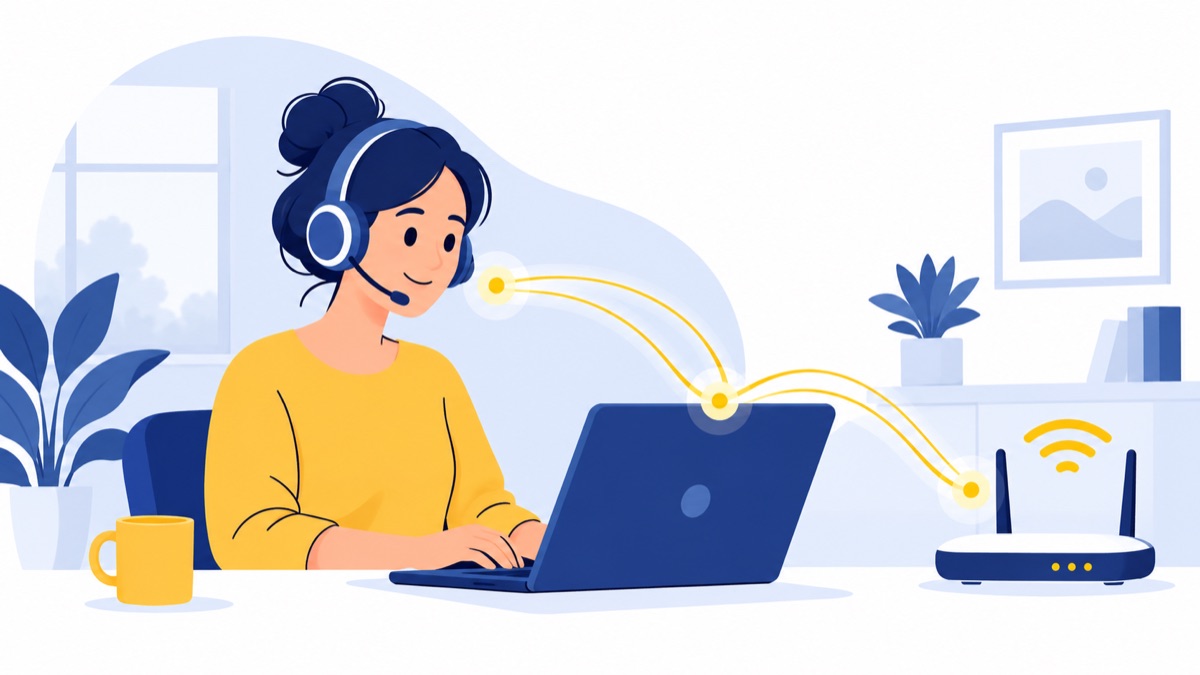
Browser calling requires a provider-supported browser, microphone permission, a working microphone and speaker or headset, and an internet connection stable enough for two-way audio. Exact browser versions, operating-system requirements, and network rules vary by service, so validate the setup on the devices and networks employees will actually use.
Browser, headset, and microphone
Before rollout, confirm the provider's current browser and version requirements. Grant microphone access, check that the browser is using the intended input and output devices, and make a test call with the team's standard headset. A headset often reduces echo and improves privacy in shared spaces.
Browser notifications can alert employees to incoming calls, but users may need to allow notifications in browser and operating-system settings. Test whether alerts appear when the calling tab is in the background and when the computer is locked; behavior can vary across browsers and device settings.
Internet and network setup
Use a wired connection or stable Wi-Fi where practical, and test from home networks as well as any office or VPN connection employees use. Firewalls, VPN routing, and network policies can affect real-time audio. Ask the provider or IT administrator what network traffic must be allowed, then make test calls during typical work hours rather than relying on a single quiet-period check.
What happens when a browser or internet connection fails?
A browser call can stop working if the employee closes the calling tab, signs out, loses power, or loses internet access; the exact result depends on provider settings and the employee's other active devices. Configure a fallback—such as routing to another teammate, voicemail, a mobile app, or a forwarding number—and test that calls reach the intended destination during an outage.

Do not assume a closed tab will keep ringing. Ask what happens when a browser sleeps, the laptop disconnects from Wi-Fi, or an employee signs out, and whether another endpoint can ring at the same time. If calls are business-critical, document who monitors the fallback number and how staff will return missed calls.
The US Census Bureau reported that 13.3% of workers worked from home in 2024, down from 13.8% in 2023, using its measure of usual commuting mode. That measure differs from occasional telework measures; the Bureau of Labor Statistics' telework data offers a separate, more frequent view of working from home.
How should you choose a browser phone system for your team?
Choose by matching the system to the team's call flow, then test that flow in the browser employees will use. A small distributed team may prioritize a shared number and simple routing, outbound sales may need dialing and CRM logging, and customer support may need queues, availability controls, and after-hours coverage.
Small distributed team
Start with number sharing, extensions, business hours, voicemail, and a clear fallback. A small business comparing setup and ongoing costs can use this small business phone system guide to build a shortlist. Keep the setup simple enough that an administrator can update routing when staffing changes.
Outbound sales team
Test outbound caller ID, click-to-call or power dialing if needed, CRM contact matching, and automatic call logging. A sales team should also decide how reps record outcomes and schedule follow-ups, then check that the browser workflow makes those steps practical. Voicalyst describes a power dialer for sales workflows; verify plan availability and CRM behavior in a trial.
Inbound support team
Prioritize queue behavior, transfers, business-hour and after-hours routing, voicemail, and visibility into missed calls. Have agents test both ordinary and busy periods, including what happens when no one answers. A phone system for support teams may be relevant if those are the workflows your team needs.
What should you check about privacy, security, and 911?
Businesses should review who can access phone accounts and recordings, how long call data is retained, and how the provider handles remote users' emergency locations. VoIP emergency calling can have location limitations, so configure and periodically confirm each employee's service location and follow the provider's current 911 instructions.
The FCC says interconnected VoIP providers must inform new and existing customers about 911 capabilities and limitations. Its VoIP and 911 guidance explains why businesses should confirm location registration and emergency-call procedures, especially when employees work from changing locations.
For recordings, transcripts, and AI-generated summaries, limit collection to what the business needs and restrict access to people with a work-related reason. The FTC recommends that businesses inventory personal information, keep only what they need, protect it, and dispose of it securely in its business guide to protecting personal information. Check provider terms and applicable state requirements for recording and retention rules.
How can you pilot a browser phone system before switching?
Run a short pilot with several remote employees using their real devices, headsets, and networks before porting the main business number. Have each person test inbound and outbound calls, routing, caller ID, notifications, call logs, CRM records, and the fallback path, then record failures and resolve them with the provider.
Use this checklist:
- Place an inbound and outbound call from each test browser and location.
- Confirm the intended business caller ID appears on outbound calls.
- Test blind and warm transfers, ring groups, queues, and business-hours routing.
- Check voicemail delivery, call history, and missed-call visibility.
- Test browser notifications with the tab in the background.
- Confirm headset audio and microphone permissions on the actual device.
- Send and receive a business text if texting is part of the workflow.
- Confirm CRM contact matching, call logging, and summary behavior.
- Close the browser tab, sign out, and disconnect internet briefly to observe fallback behavior.
- Confirm number porting steps, support availability, plan limits, and total pricing.
A pilot gives the team evidence about call quality and workflow fit before changing customer-facing numbers. To discuss browser calling, numbers, menus, queues, voicemail, AI summaries, power dialing, texting, or HubSpot sync with Voicalyst, review the platform and request a demo.
Frequently Asked Questions
Can employees use the same business number from home?
Yes. A cloud phone system can assign a shared business number to multiple employees or route calls to their extensions, ring group, or queue. Employees can make outbound calls showing an approved business caller ID, depending on the provider and plan. Test inbound routing and outbound caller ID from each employee’s actual browser and location.
Do browser phone systems need a headset or app?
A browser phone needs a supported browser, microphone permission, speakers or a headset, and a reliable internet connection. A headset is usually the practical choice for reducing echo and background noise. Some providers support in-browser calling without a downloaded app, while others require a desktop or mobile app for some features or fallback.
What happens if the browser closes or internet drops?
Calls may stop ringing in the browser when its tab closes, the user signs out, or the connection fails. Depending on provider settings, unanswered calls may go to voicemail or route to another teammate, mobile app, or phone number. Confirm the exact behavior, configure an outage fallback, and test it before moving your main business number.
Can browser phones connect to HubSpot or other CRMs?
Some browser phone services integrate with CRMs such as HubSpot, but availability and functions vary by provider and plan. Check whether the integration logs calls, matches contacts, records outcomes, and attaches summaries or recordings. Test a real inbound and outbound call during a pilot to confirm records appear on the right contact.