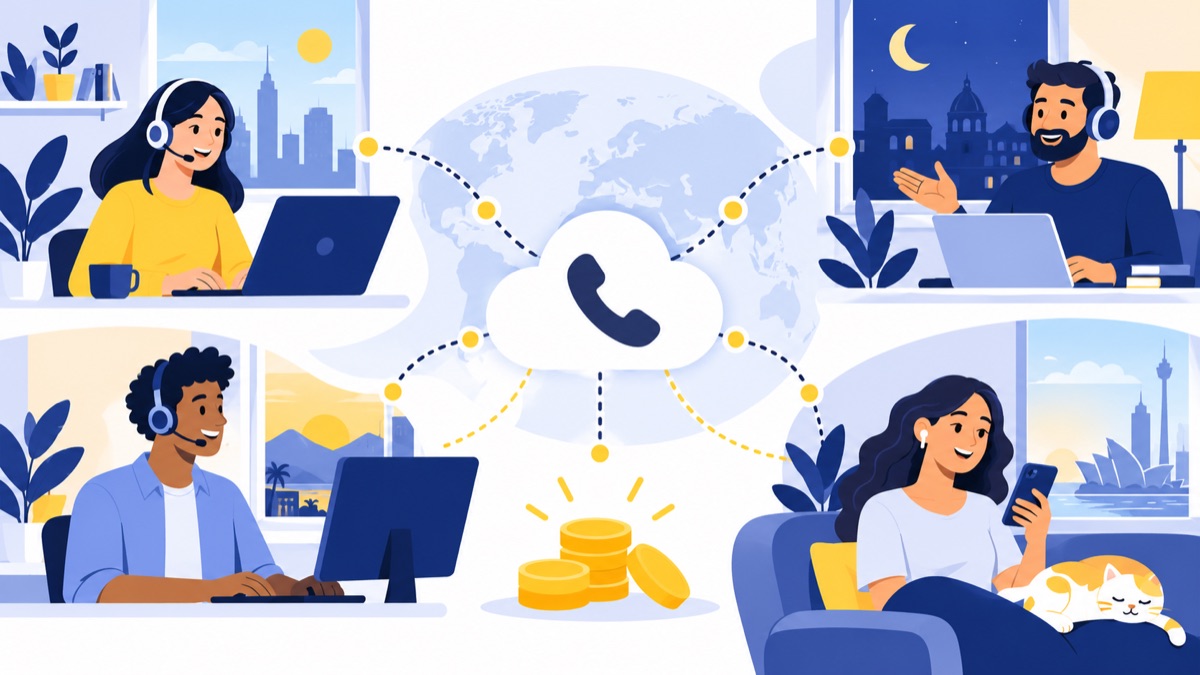
A phone system for remote teams gives sales and support staff a shared business number, consistent caller ID, and call routing they can use from approved devices wherever they work. The right setup depends on who answers calls, when customers call, and how your team handles missed calls, handoffs, texting, and emergency locations. This guide explains the options, shows a sample setup across U.S. time zones, and gives you a practical checklist for comparing features and costs.
Key takeaways
- A shared business number with menus and queues lets a team route calls without making one employee’s personal phone the sole point of contact.
- Remote teams should publish coverage hours with a named time zone and assign an owner and backup to each queue and voicemail inbox.
- VoIP users may need to register and update their physical location with their provider so emergency calls can reach the right responders.
- Businesses should compare total phone-system costs per user, including numbers, usage, add-ons, implementation, taxes, fees, and billing terms.
- Remote employees usually do not need desk phones when their provider supports the team’s chosen browser, desktop, or mobile devices.
What does a phone system for remote teams do?
A phone system for remote teams connects shared business numbers to employees working in different locations, then routes calls based on menus, schedules, or availability. A basic forwarding number may suit one person, while a team with several departments or shifts usually needs shared routing and central administration.
Virtual phone number, VoIP, softphone, and cloud PBX explained
A virtual phone number is a business number that routes calls to selected devices or people rather than relying on one physical phone line. VoIP (Voice over Internet Protocol) carries calls over an internet connection. A softphone is software that lets someone make and answer calls on a computer or mobile device. A cloud PBX is an internet-hosted phone system that manages features such as extensions, menus, queues, and business hours.
These terms describe related parts of a setup. A company can keep one public number while staff answer in a browser or app, and an administrator can manage routing centrally.
When is call forwarding enough?
Call forwarding can be enough for a solo consultant or a small business that wants calls to one business number sent to one or two phones. A team usually needs more control when calls should ring a group, follow different sales and support paths, or go to a defined fallback if nobody answers.
If one employee owns the only number and is unavailable, calls may go unanswered and customer history can stay on that person’s device. Shared routing and administration help the business retain control as staff change roles or leave.
What call workflows should a remote team phone system support?
A remote team phone system should carry each call from a shared number to an available employee, preserve a reliable record, and define what happens when nobody answers. The workflow should also cover outbound caller ID, shared texting, voicemail ownership, and handoffs across shifts and time zones.
How should a remote team handle inbound sales and support calls?
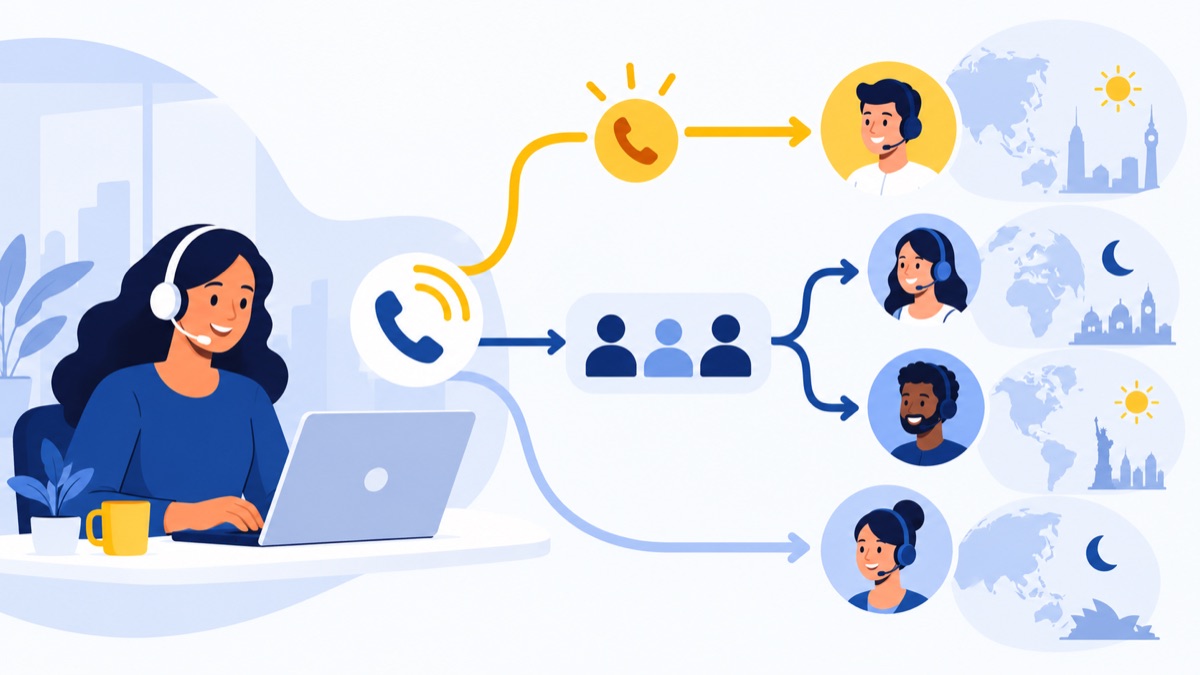
A remote team can direct callers from its main number to Sales or Support, then place each caller in a queue for that team. A queue is a holding and distribution process that offers calls to selected available teammates. Decide how calls move through it, how long they ring, and whether callers can leave voicemail or request a callback.
Give each shared inbox or voicemail a named owner and backup. For example, a support lead can review missed calls at opening, while a sales manager checks unreturned leads before the team’s coverage window closes.
How should staff handle outbound caller ID and shared texting?
Staff should know which business number appears when they call customers. Confirm whether each user can select the main number or a department number, whether the system logs calls centrally, and whether texts sent to that number are visible to the right teammates.
A shared texting inbox can keep customer conversations accessible when shifts change. Set rules for who responds, how messages are assigned, and what happens when a customer replies outside business hours.
How can teams hand off calls across time zones and shifts?
A remote team can prevent missed handoffs by using availability settings, assigning a clear owner to each queue, and recording a handoff note or CRM activity. Those steps help the next person see what happened when a caller leaves voicemail or a teammate signs off before the customer receives a response.
U.S. work patterns include hybrid arrangements: in 2025, 35% of employed people did some or all of their work at home on days they worked, according to the Bureau of Labor Statistics’ American Time Use Survey. That measure includes hybrid work; it does not mean 35% worked fully remotely.
What features should a remote team phone system have?
A remote team phone system should provide business numbers, extensions or menus, queue or ring-group routing, business-hour rules, voicemail, call history, and administrator controls. Add texting, CRM sync, reporting, AI summaries, or power dialing when they address a workflow your team needs.
Can remote workers make business calls from a browser or mobile app?
Remote employees can often make and answer calls using a browser, desktop app, or mobile app, but the supported devices and behavior vary by provider. Test headset selection, notifications, work caller ID, and what happens when a browser tab closes or a call moves between devices.
- Browser calling avoids a separate desktop app, but depends on supported browsers, device permissions, and a stable network.
- Desktop and mobile apps can provide dedicated calling interfaces and notifications. Check sign-in, device support, caller ID, and whether calls can move between devices.
- Forwarding to a personal phone can be quick to set up, but may mix work with personal calls or make caller ID and privacy harder to manage.
- Desk phones may suit a fixed office or users who want dedicated hardware. They are not automatically required for remote staff.
Ask providers to verify device and network requirements for your team. During a trial, test actual inbound and outbound calls, missed-call notifications, and whether business caller ID stays consistent.
How should you configure menus, queues, schedules, and fallback routing?
A phone menu, also called an IVR (interactive voice response), lets callers choose where their call should go. Pair the menu with queues or ring groups, business-hour schedules, voicemail, and a fallback destination so callers know who will answer, how long they may wait, and what happens when the primary path fails.
Which voicemail, call history, texting, and CRM tools matter?
A remote team needs to see call outcomes and return missed calls, with voicemail and call history available to the staff responsible for follow-up. Test whether voicemail reaches the right people, call history is searchable, and shared texts remain available when employees change shifts.
For CRM sync, run an actual workflow: call a test contact, confirm the correct record is matched, and check whether the call result, notes, and follow-up are recorded. Treat reporting, AI call summaries, and power dialing as optional until you have confirmed the use case, access rules, and plan availability.
How do you set up a phone system for a remote team?
Set up a phone system for a remote team by assigning a shared number, mapping menu options to owned queues, defining coverage hours in named time zones, and specifying fallback behavior for unanswered calls. Test the complete caller journey on every supported device before inviting customers to use the number.
What is a practical sample setup for a distributed U.S. team?
A distributed team can start with one local or toll-free number, a simple menu, separate Sales and Support queues, and named owners for each voicemail inbox. The sample below uses an Eastern Time core schedule with explicit regional coverage and fallback rules.
| Element | Example configuration |
|---|---|
| Main number | One local or toll-free business number |
| Menu | “Press 1 for Sales; press 2 for Support” |
| Sales | Ring available sales staff; overflow to a shared sales voicemail |
| Support | Ring the support queue; offer voicemail or callback instructions after a set wait |
| Core coverage | 9 a.m.–5 p.m. Eastern Time, with named Central and Pacific coverage blocks |
| After hours | Shared voicemail with an assigned opening-shift reviewer; on-call routing only if a staffed rotation exists |
| Ownership | Sales manager owns sales follow-up; support lead owns support voicemail; each has a named backup |
Choose one schedule model and state it plainly. Customer-local time can work when customers are spread across regions, while a central coverage window can be simpler for a small team. For regional handoffs, publish who owns each block—for example, an Eastern opener, a Central midday owner, and a Pacific closer—and make sure the queue stops ringing each person after their coverage ends.
How do you test a remote phone system before launch?
A team can validate its setup by calling the main number from outside the company, trying every menu option, leaving voicemail, sending a text, and testing from each staff device. Confirm that outbound calls show the intended business number and that the correct teammate receives each notification.
Document who handles voicemail, missed calls, and after-hours messages. Include the schedule and device setup in onboarding so new hires do not have to infer routing rules.
What 911, privacy, and compliance checks matter before launch?
Before launch, verify how the provider handles 911 calls, user or device location registration, and location changes for remote workers. Establish separate policies for recording, transcription, AI summaries, SMS, and sales dialing based on your jurisdictions and use cases, and ask qualified counsel about your specific situation because obligations can vary.
How should remote workers verify VoIP location and 911 readiness?
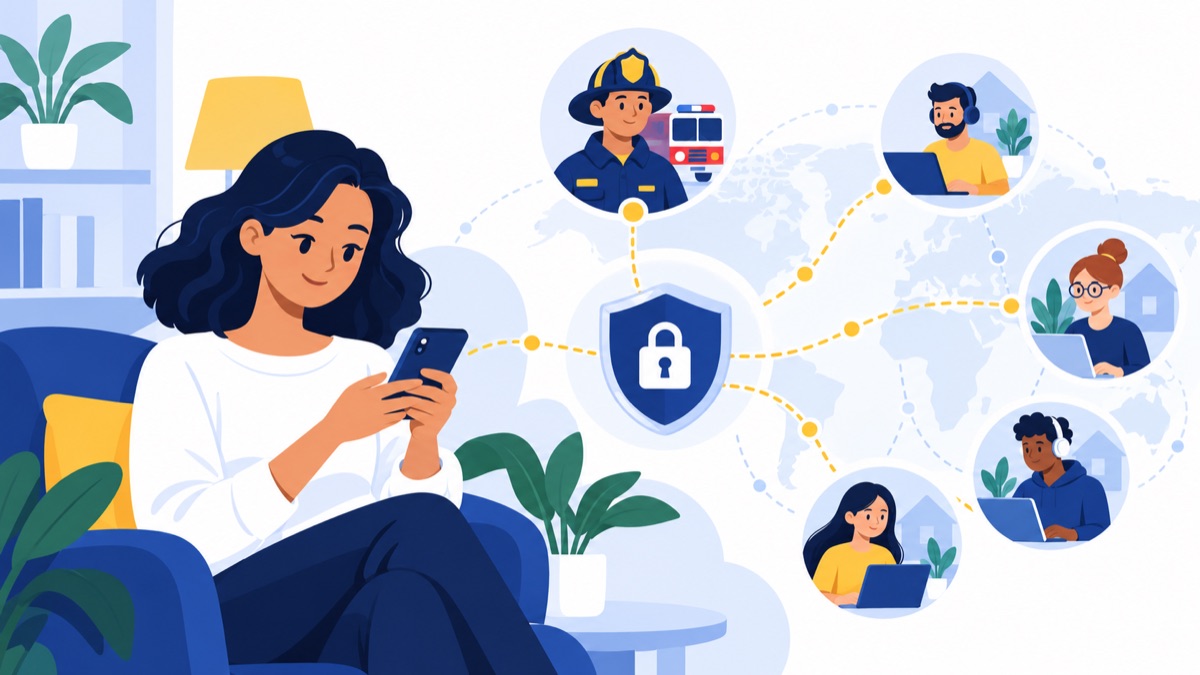
VoIP devices can move between locations, and a 911 call center may not be able to locate the caller unless the device is registered to a physical address through the provider, according to 911.gov’s emergency-calling FAQ. Ask the provider how users register and update locations, whether direct 911 dialing is supported, and what instructions apply when someone works from a new location.
Kari’s Law addresses direct 911 dialing and on-site notification for multi-line telephone systems; Section 506 of RAY BAUM’S Act addresses dispatchable location information accompanying 911 calls. Applicability depends on the system and applicable rules, as summarized by 911.gov. A provider feature alone does not resolve every employer or system obligation.
What should teams check before enabling call recording or AI summaries?
A business should decide which calls are recorded, who can access recordings and transcripts, how long records are retained, and how callers are informed before enabling recording or transcription. Apply similar access and retention controls to AI summaries, which may contain sensitive customer details.
Recording consent requirements depend on the applicable jurisdictions and context. Seek qualified legal advice for your specific practices.
What should teams check before texting or using sales dialing?
A business should review applicable requirements before using business SMS for customer outreach, including registration, consent, opt-out handling, and message practices for its use case. Sales teams should also review applicable telemarketing and calling rules.
Keep written policies current and have qualified counsel confirm obligations for the jurisdictions where your business and customers are located.
How much does a phone system for remote teams cost?
The cost of a phone system for remote teams depends on user count, plan tier, number charges, usage limits, add-ons, and billing term. Compare the total monthly and annual cost for the same seats and workflow, then include implementation, taxes, and fees instead of relying on a single advertised per-user price.
Which subscription, number, usage, and add-on charges should you compare?
A business may pay per user or choose a plan that bundles features into tiers. Check whether local and toll-free numbers, calling, texting, integrations, recording, reporting, and AI features are included or billed separately, and confirm international usage rates and caps.
As a dated example in the research brief, Aircall’s published Essentials plan listed $30 per license per month and included US/Canada calls, SMS/MMS, shared inbox, recordings and transcripts, IVR, and integrations. This is vendor pricing that can change; verify the current offer directly before using it to budget.
What belongs in a remote phone system total-cost checklist?
A business should request an itemized quote showing monthly and annual totals for the same number of users and required features. Include charges beyond the per-user subscription, such as number fees, onboarding, usage, and taxes.
- Number of users and monthly versus annual billing
- Local, toll-free, and additional number charges
- Calling, texting, and international usage limits
- Premium routing, CRM integrations, recording, or AI features
- Setup, number porting, onboarding, and support fees
- Taxes, regulatory charges, and other fees
For a deeper comparison of hosted systems and traditional PBX economics, see this guide to cloud phone system and PBX costs.
How do you choose a phone system provider for your team?
Choose a phone system provider by matching routing, devices, integrations, reporting, and support to how your team handles calls today and expects to grow. A business phone system can cover shared numbers and team routing; a contact center generally serves more complex, high-volume operations that may need deeper queue management and operational tools.
Compare providers against your number of users, call volume, geographic coverage, CRM and collaboration tools, support requirements, and must-have features. The BLS telework data page publishes data by occupation, industry, and class of worker, with notes on what the measures cover. Use it for workforce context, then base your routing design on your actual staffing plan.
During a trial, ask:
- Can we build our menu, queue, hours, and fallback without custom work?
- Can staff use the browser, desktop, or mobile devices we support?
- How do caller ID, shared texting, voicemail, and missed-call ownership work?
- What exactly syncs to our CRM, and can we test it with a real workflow?
- Which features cost extra, and what changes between monthly and annual billing?
- How does the provider handle 911 location registration and updates?
If you are comparing system types, this overview of cloud-based VoIP phone systems provides a starting point.
Where does Voicalyst fit?
Voicalyst may fit U.S. sales and support teams looking for browser-based business numbers, menus, queues, voicemail, texting, and HubSpot sync in one workflow. Evaluate available features against your required routing, device, emergency-calling, privacy, and compliance needs before choosing a system.
A sales team could assess whether shared numbers, call summaries, power dialing, and texting match its follow-up process. A support team could assess menus, queues, voicemail, and HubSpot sync against its coverage and customer-history needs. Voicalyst describes these capabilities on its pages for virtual phone systems, IVR menus and call routing, and HubSpot calling integration.
Confirm feature availability, plan limits, device requirements, and the provider’s 911 process directly. To discuss your workflow, visit Voicalyst.
What should be on a remote team phone system setup checklist?
A go-live checklist helps confirm that shared numbers, routing, devices, ownership, and policies work together before customers rely on the system. Assign a person to each item and record the final settings so schedule or staffing changes do not leave calls without an owner.
- Assign an owner and backup for every shared number, queue, voicemail inbox, and text inbox.
- Confirm menu options, queue membership, ring behavior, fallback, and after-hours handling.
- Publish coverage hours with named time zones and shift handoffs.
- Test browser, desktop, mobile, or desk-phone setups the team will use.
- Verify outbound caller ID, call history, voicemail, notifications, and CRM logging.
- Set recording, transcription, AI-summary, texting, and access policies for your use case.
- Review provider 911 support, registered locations, and location update steps with remote staff.
- Record plan, number, usage, add-on, implementation, tax, and fee costs.
- Include calling and emergency-location instructions in employee onboarding.
Frequently Asked Questions
How does a virtual phone system work for remote workers?
A virtual phone system routes calls to a business number through internet-connected apps, browsers, or compatible phones. Callers can reach a shared menu or team queue, while staff answer from approved devices and use business caller ID for outbound calls. Admins manage numbers and routing centrally. Setup details and available features vary by provider.
Can remote employees use a company phone number on a personal phone?
Often, employees can use a provider’s mobile app to call or text through a company number, keeping that number separate from their personal caller ID. Forwarding calls directly to a personal number works differently and may expose the personal number on outbound calls or mix work and personal notifications. Verify caller ID, privacy, and device policies before rollout.
Can a VoIP phone system call 911 from a home office?
VoIP services may support 911, but responders may not receive a caller’s current location unless the device or user has a registered physical address through the provider. Confirm direct 911 dialing, location registration and update steps, and any system notification features for each applicable user or device. Employees should follow provider instructions when working from a new location.
Do remote employees need a desk phone for a business phone system?
Usually, no. Many cloud systems support browser, desktop, or mobile apps, while desk phones remain an option for workers who prefer dedicated hardware or need a particular office setup. Check supported devices, headset and network requirements, and how calls behave when an employee switches between devices.