
A cloud phone system without hardware is easiest to set up when it lets your team call through a browser or app on computers and smartphones you already own, with no on-site PBX or desk phones to install. You still need reliable internet, a microphone or headset, and time to configure call routing; number porting, integrations, and complex workflows can extend the setup.
Key takeaways
- A browser or app based cloud phone system can eliminate desk phones and an on-site PBX, but it still needs internet-connected computers or smartphones and audio equipment.
- A practical rollout includes choosing or porting a number, adding users, configuring business hours and routing, setting greetings and voicemail, connecting tools, and testing calls.
- FCC rules require interconnected VoIP providers to obtain a registered service location before service begins and allow users to update it.
- A provider’s setup-time claim may exclude number transfers, CRM configuration, call-flow design, and user training; ask what the estimate includes.
- Browser calling, mobile and desktop apps, and compatible desk phones offer different tradeoffs in flexibility, familiarity, and setup effort.
The easiest cloud phone system setup uses devices you already own
For most small and mid-sized businesses, the simplest setup is a hosted phone service with browser or app calling: employees sign in on existing computers or smartphones instead of installing a PBX or buying desk phones. Voicalyst offers a browser-based virtual phone system for business calling; setup still depends on your team’s call flow, number needs, and integrations.
What you can skip—and what you still need
You can skip an on-site phone server, PBX wiring, and desk phones if your team is comfortable calling from computers or smartphones. You still need an internet connection, a supported device, a microphone, speakers or a headset, and a way to power and connect those devices.
A headset with a microphone helps reduce room noise and echo, especially for sales or support agents on frequent calls. A wired headset or wired network connection can be a useful choice for a fixed workstation, while a mobile app can give staff more flexibility.
What does “cloud phone system without hardware” actually mean?
A cloud phone system runs its call management through a provider’s online service, while users place and receive calls using supported devices. “Without hardware” usually means without dedicated desk phones or an office PBX—not without a computer or smartphone, internet access, or audio equipment.
Cloud phone, cloud PBX, VoIP, and softphone
A cloud phone system is a business calling service hosted online by a provider. A cloud PBX is the hosted system that manages how calls are routed between users, teams, and external numbers. VoIP means voice over internet protocol: carrying voice calls over an internet connection. A softphone is software that lets a computer or mobile device place and receive phone calls.
The terms describe related parts of a setup, but they do not guarantee the same devices or features. A cloud system can support browser calling, desktop or mobile apps, compatible desk phones, or a mix.
Browser, app, or optional desk phone?
| Calling option | Setup and flexibility | Often suits |
|---|---|---|
| Browser calling | Sign in on a supported browser and grant microphone access; no app installation may be needed | Teams that want a quick start on existing computers |
| Desktop or mobile app | Install and sign in; calling can follow the user between supported devices | Hybrid teams and employees who work away from a desk |
| Compatible IP desk phone | Configure or provision a physical phone and network connection | Staff who prefer a handset or work at a fixed station |
A hosted phone system can still support desk phones. The key choice is whether your team wants to use them, not whether cloud service requires them.
The FCC reported 64.5 million interconnected VoIP subscriptions in the United States in June 2024. That figure provides market context; it is not a count of desk-phone-free users or business phone vendors. (FCC data)
How do you set up a cloud phone system without desk phones?
Set up a cloud phone system by selecting a provider and number, adding users, configuring call handling, connecting any required business tools, and testing end-to-end calls. Basic user and routing configuration may be self-service, but number transfers, custom integrations, and complex call flows can depend on provider support and outside approvals.
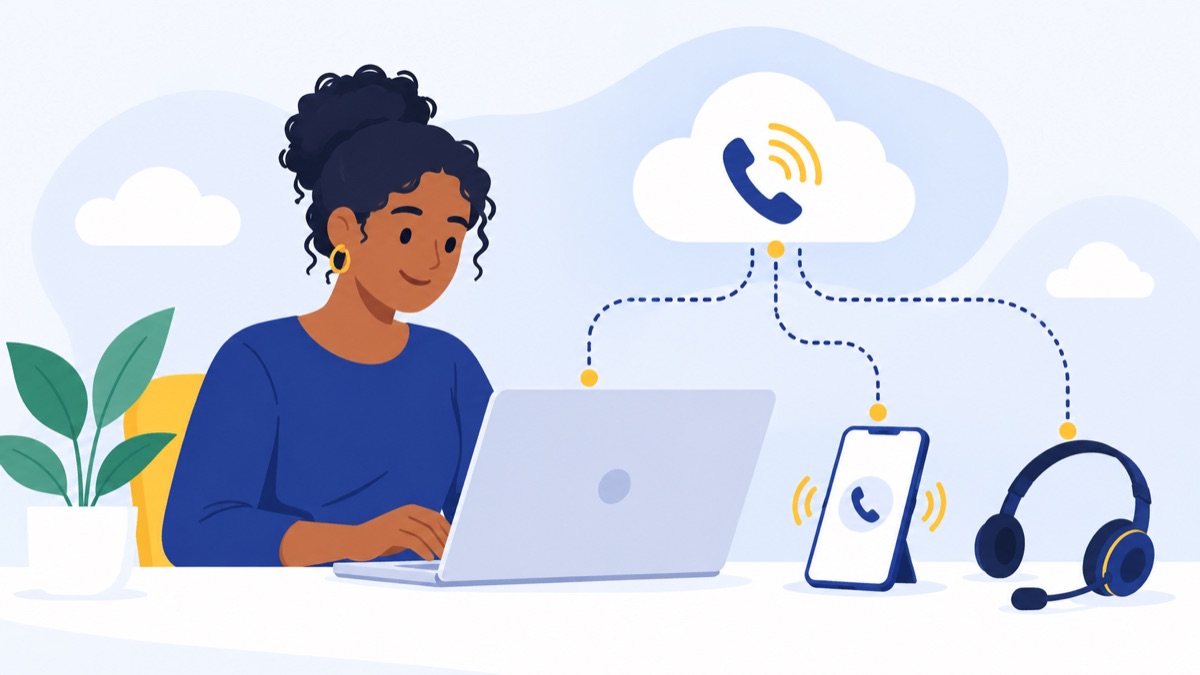
1. Choose a provider and select a business number
Decide whether you need new local or toll-free numbers, or want to transfer existing numbers. Before signing up, ask what information the provider needs, whether there are porting fees, how it handles temporary service during a transfer, and how it will confirm completion.
2. Add users and choose calling devices
Create user accounts, assign business numbers or extensions, and decide whether each person will use a browser, desktop app, mobile app, or optional desk phone. Verify supported browsers and operating systems, and confirm that users can access the features they need on their chosen device.
3. Set up business hours, routing, and voicemail
Write down where calls should go during and outside business hours. Configure any menus, team queues, ring groups, voicemail greetings, and after-hours rules, then test the paths as a caller would experience them.
Voicalyst provides IVR menus and call routing for businesses that need to direct incoming calls by department or purpose. Keep the first call flow straightforward, then add branches when you can identify a real need.
4. Connect your CRM and sales tools
Connect your CRM if you want calls and follow-up activity visible alongside customer records. Confirm what data syncs, whether the integration is available on your plan, and whether users need to connect their accounts individually. For HubSpot workflows, review HubSpot calling integration.
5. Test calls, audio, and fallback behavior
Before moving your whole team, place and receive test calls from every device type in use. Check number display, audio quality, voicemail, routing, business hours, and the behavior you expect if a user is offline or the internet is interrupted. Show employees how to sign in, set availability, and handle a missed call.
How do you choose the easiest system for your team?
The easiest cloud phone system is the one your administrator can configure and employees can use with little friction, while still meeting your calling requirements. Compare the actual onboarding tasks, device support, porting process, integrations, support, emergency calling, and full costs instead of relying on a headline claim such as “live in minutes.”
Compare setup options
| Setup type | What you install or configure | Ease and tradeoff |
|---|---|---|
| Traditional PBX | On-site phone system, network and phone equipment, and extensions | Requires more physical setup and often IT support |
| Cloud phone with desk phones | Hosted service plus compatible, configured phones | Avoids an on-site PBX but retains handsets to purchase or manage |
| Browser or app only | Accounts, devices employees already own, audio access, and call settings | Usually fewer physical setup steps; depends on internet and device readiness |
Buyer checklist
Ask each provider:
- What does the advertised setup time include, and what work is excluded?
- Can an administrator add users and edit routing without a support ticket?
- Which browsers, desktop apps, mobile apps, and desk phones are supported?
- What documents, fees, and timing should we expect for porting?
- Do the CRM integrations cover our workflow and plan?
- How are access, call recordings, retention, and other security needs handled?
- How does 911 calling work, and how do users update registered locations?
- What is the total per-user cost, including taxes, usage, number fees, feature tiers, hardware, and optional AI or dialer add-ons?
- What support is available during setup and if calls fail?
Published setup times can describe account activation without covering number porting, integration work, call-flow design, or team training. Get the inclusions in writing and estimate those tasks separately.
For comparisons of deployment and ownership tradeoffs, see cloud phone system versus traditional phone system. For likely plan and add-on expenses, use the 2026 US business phone system pricing guide.
What should sales and support teams look for?
Sales and support teams should choose features that match the calls they handle every day: routing incoming inquiries, keeping records, following up, and sending customers to the right person. Core features can include business numbers, menus, queues, voicemail, texting, CRM sync, call summaries, and power dialing, but confirm what the specific plan and device support.
A support team may need queues, business-hour routing, voicemail, and a clear path for callers who cannot reach an agent. A sales team may care more about individual business numbers, fast follow-up, power dialing, and call activity attached to CRM records.
Texting can help a team follow up with customers through a business number when the service and applicable rules allow it. AI call summaries can reduce manual note-taking, while a power dialer can support outbound calling workflows. Review AI call summaries and power dialing to see whether those tools fit your process and budget.
For workflow-specific buying questions, see our guides to cloud phone systems for sales teams, cloud phone systems for support teams, and CRM-integrated cloud phone systems.
What internet and audio setup makes cloud calling reliable?
Cloud calling depends on a stable internet connection and a working microphone and speaker or headset, so test the actual devices and network your team will use. There is no universal speed number that guarantees good calls: stability, competing network traffic, Wi-Fi coverage, and device settings also affect audio.
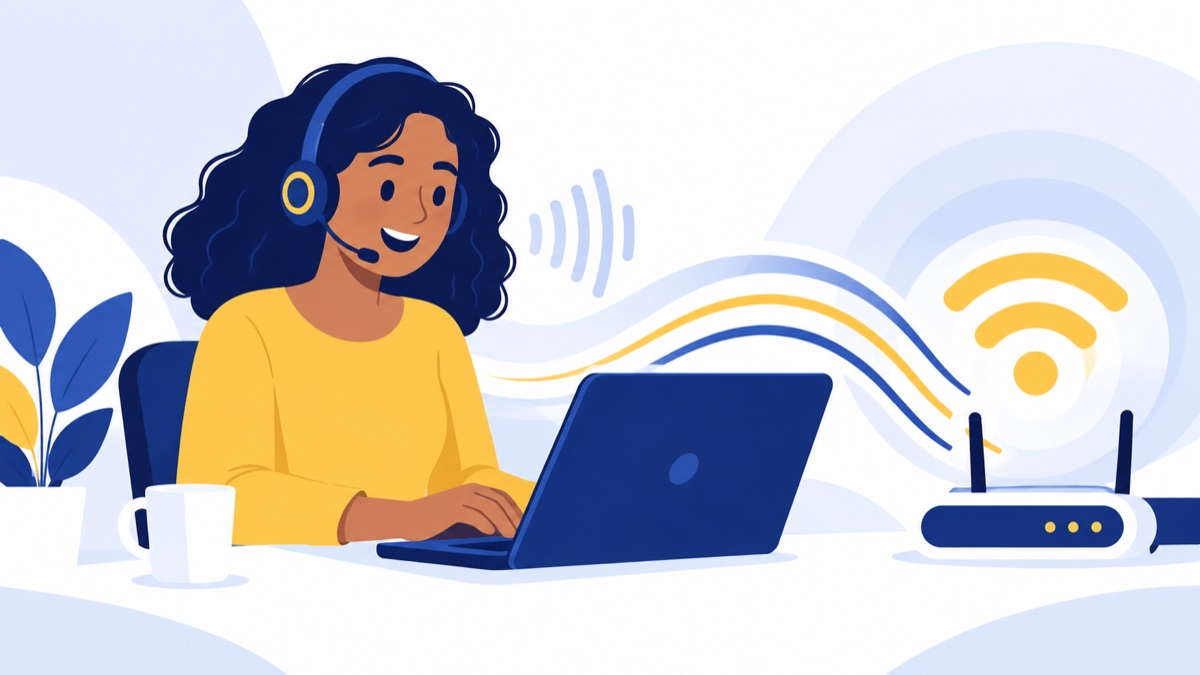
The SBA Office of Advocacy reported that 83.9% of small business establishments had terrestrial broadband access in 2024, up from 48.1% in 2014. Broadband access makes internet calling relevant to many businesses, but it is not universal. (SBA Office of Advocacy)
For clearer calls, use a headset that fits the user’s work, check microphone and speaker selection in the calling app, and test from the place where calls will happen. For fixed workstations, try a wired network connection if Wi-Fi is unstable. Ask the provider about service status information, support availability, and mobile app or call-forwarding options for an internet disruption. Test those fallback options before relying on them.
How do number porting and 911 affect setup?
Number porting and emergency calling need attention before launch: confirm the transfer process for existing numbers, and register the service location used for VoIP 911 calls. Keep your current service active until the new provider confirms the port is complete and you have verified incoming and outgoing calls.
Move an existing business number carefully
Ask the receiving provider what account details and authorization it needs, how it will communicate status, whether there are fees, and what timing it can estimate for your number and carrier. Timing can depend on provider and carrier processes, so avoid scheduling a hard cutover until you have a confirmed plan.
The Voicalyst number porting page describes its number-transfer offering. Whatever provider you choose, do not cancel the old line before the transfer is confirmed; then test calls to and from the ported number.
Register and update the 911 service location
FCC rules require interconnected VoIP providers to obtain a registered service location before service begins and allow end users to update that location. Confirm your provider’s 911 arrangements, register the correct location, and update it when the service is used from a new location. (FCC guidance)
Who benefits most from a browser-first cloud phone system?
A browser-first cloud phone system can suit small and mid-sized businesses that want employees to call from existing computers or smartphones and avoid installing a PBX or buying desk phones. Distributed sales and support teams may benefit from app access and centralized routing, while teams with complex legacy equipment or specialized requirements may need more planning and technical support.
A cloud-based system may be a poor fit without dependable connectivity or a tested fallback. Specialist help can also be useful when you need to integrate a legacy PBX, build complex call flows, meet regulated call-recording requirements, or review security and retention controls. The Census Bureau reported that businesses adopted cloud-based technology at a rate of 40.0% during 2016–2020 among the technologies and periods surveyed; this is broader context, not a phone-system adoption rate. (U.S. Census Bureau)
If browser or app calling fits your team, compare workflows, plans, and support before choosing. Explore Voicalyst and check whether its calling features fit the way your team handles customers.
Frequently Asked Questions
Do I need a desk phone for a cloud phone system?
No. A cloud phone system can route calls through a browser or desktop or mobile app on a computer or smartphone you already own. You still need a reliable internet connection, a microphone, and speakers or a headset. Compatible desk phones are optional for people who prefer a physical handset.
Can I keep my current business phone number?
Usually, you can request to transfer your existing number to a new provider through a process called number porting. Ask the new provider about its paperwork, expected timing, fees, and any service restrictions. Keep your current service active until the provider confirms the port is complete and you have tested calls.
Can I make business calls from a browser?
Yes, if your provider offers browser calling. Sign in on a supported computer, allow microphone access, connect a headset or use the computer’s microphone and speakers, then place and receive calls through the web app. Check browser compatibility, emergency calling support, and whether the features your team needs work in the browser.
What happens if my internet goes down?
Browser-based calls need an internet connection, so an outage can interrupt calling on that device. Ask whether calls can forward to a mobile or backup number, and whether the provider’s mobile app can use a separate connection. Test the fallback plan in advance and keep an alternate way to reach customers.
Does VoIP support 911 calling?
Interconnected VoIP providers must obtain a registered service location before service begins and let users update that location. Confirm how your provider handles 911 calls, register the correct location, and update it when the service is used from a new location. Do not assume a mobile caller’s location updates automatically.
How long does it take to set up a cloud phone system?
A small team may be able to configure users and basic call routing in a short self-service session, but total setup time depends on number porting, integrations, call-flow complexity, and training. Ask what a provider’s advertised setup time includes, then plan a separate period to test calls and confirm the number transfer.