
A VoIP call carries voice over an internet protocol (IP) network using a browser, app, desk phone, or adapter. For a small business, getting started means choosing supported devices, setting up users and call routing, and checking the network from the places employees actually call. This guide explains how a call travels from microphone to hang-up, which settings affect clarity, and how to troubleshoot common problems.
Key takeaways
- A VoIP call converts voice into digital audio and carries it over an IP network, which may be public, managed, or private.
- SIP commonly handles call setup and control, while RTP commonly carries audio, so a call can connect even when its audio path has a problem.
- Cisco cites an ITU-T G.114 recommendation of less than 150 milliseconds of one-way delay for high-quality real-time traffic; jitter and packet loss can also impair intelligibility.
- Cisco estimates an example G.711 call at 80 kbps including headers, but actual bandwidth needs depend on codec, overhead, and concurrent network use.
- VoIP depends on power and connectivity; US users should register their service address for 911 and update it when they move the service.
What is a VoIP call?
A VoIP call sends voice as digital data over an IP network instead of reserving a dedicated circuit for the entire call. The network can be the public internet or a managed or private network, depending on the service and configuration; “internet calling” does not mean every call takes the same route.
VoIP in plain English
VoIP means “voice over internet protocol.” Your device captures speech, encodes it as digital audio, and sends it in packets that the receiving device can rebuild and play.
A VoIP-to-VoIP call connects endpoints using IP calling services. A call to or from a regular US phone number can pass through a provider or gateway that connects IP calling to the public telephone network. The destination and service determine how the call is routed.
VoIP calling versus a traditional phone line
Traditional circuit-switched calling reserves a circuit for the duration of a call. VoIP sends packets across an IP network, where the route may be shared with other network traffic and may change along the way.
The FCC’s December 2023 Form 477 data reported approximately 22.9 million over-the-top VoIP subscriptions and 41.3 million other VoIP subscriptions. Those categories describe provider arrangements, not the total number of people using internet calling apps. FCC Form 477 data
For a broader look at devices and business use, see what a VoIP phone is and how businesses use one.
How does a VoIP call work, step by step?
A VoIP call usually follows four stages: the device captures and encodes your voice, call signaling finds the destination, the endpoints exchange media, and signaling ends the session when someone hangs up. SIP commonly handles signaling and RTP commonly carries audio, but protocols vary across systems and services.

Your device captures and encodes your voice
When you speak into a phone or headset, a microphone converts sound into an electrical signal. The device samples and encodes that signal into digital audio using a codec, which is a method for compressing and representing sound.
The endpoint also needs to be registered or signed in with its calling service so the service knows where it can reach the user. Registration can happen before a call starts.
The service sets up and routes the call
When you dial, the service checks the destination and decides where the call should go. If the recipient is another user in the same service, the call may stay within that IP service. If you dial a regular phone number, a provider or gateway may route it to the public telephone network.
SIP, or Session Initiation Protocol, is a commonly used protocol for call signaling. It handles call-control messages such as initiating, answering, and ending a session; it does not itself describe every system’s audio transport.
Audio packets travel and are rebuilt at the other end
After the endpoints establish a session, they exchange encoded audio packets over the network. RTP, or Real-time Transport Protocol, commonly carries real-time media such as audio. The receiving device reorders and decodes the packets so the listener hears speech.
Signaling and media have separate jobs. That is why a call may ring and connect successfully while the participants hear silence or only one side of the conversation.
The call ends
When someone hangs up, the service sends a signaling message to end the session. The devices stop sending call audio and release the resources they were using.
What do you need to make a VoIP call?
A VoIP call needs a calling service or app, a supported endpoint, and a working network connection. The endpoint may be a browser softphone, desktop or mobile app, IP desk phone, or—where the provider supports it—an analog phone connected through an adapter.
Choose a calling device
- Browser softphone: Call from a supported browser with a microphone and speakers or headset. Allow microphone access and choose the right input and output devices.
- Desktop or mobile app: Install the provider’s app and sign in. Check for app updates and confirm microphone permissions.
- IP desk phone: Connect a compatible phone to the network and provision it with the service.
- Analog phone with an adapter: A supported adapter can connect some traditional analog phones to a VoIP service.
An IP phone is a phone designed to communicate over an IP network. For help comparing desk phones and other business setups, see the VoIP phone service guide for small businesses.
Prepare the network and audio setup
Use a connection that can handle call traffic even when employees are uploading files, joining video meetings, or backing up data. A headset with a built-in microphone can make it easier to hear callers and reduce room noise. Check your provider’s device and network requirements before buying equipment.
How do you set up and configure business VoIP?
A practical business VoIP setup starts with choosing a service and devices, then assigning users and numbers and configuring how calls reach the right person. Before launch, test both incoming and outgoing calls from each intended calling location, including during a busy network period.
Follow this setup sequence
- Choose the service and devices. Decide whether staff will call through browsers, apps, desk phones, or a supported combination. If you are comparing providers, use the criteria in this guide to choosing a VoIP service provider.
- Add users and business numbers. Assign each employee an account, permissions, and number or extension as needed. If your team needs a shared number, a virtual phone system can support a central business calling setup.
- Set business hours and routing. Decide where calls go during open hours, after hours, and holidays. Configure menus, rings, queues, and voicemail destinations so customers reach an appropriate team. Voicalyst’s IVR menus and call routing describe this kind of workflow.
- Configure caller ID and integrations. Set the outbound caller ID your business wants customers to see, and connect supported tools used by sales or support teams. For example, HubSpot calling integration can fit a team that manages customer relationships in HubSpot.
- Test before launch. Make inbound and outbound calls with each device type. Test menu selections, queue behavior, voicemail, caller ID, and any transfers or after-hours routing.
For sales teams, configure who receives new leads and how agents handle call lists before turning on a power dialer. Keep call routing easy to understand so employees know where to send a caller when the first destination is unavailable.
Which network settings affect VoIP call quality?
VoIP quality depends on enough available capacity, consistent delivery, suitable device and router behavior, and a clear audio path. Internet speed is only one part of the picture: a fast connection can still produce choppy calls if other traffic causes congestion, delay, packet loss, or jitter.
Bandwidth and competing traffic
Bandwidth is the network capacity available to carry data. Each simultaneous call uses some of that capacity, alongside email, video, backups, and other traffic. Cisco’s example estimates an 80 kbps G.711 call including headers and explains that a 64 kbps link cannot carry that example call without packet drops. Actual needs vary by codec and overhead. Cisco’s VoIP bandwidth example
Check upload capacity as well as download capacity, especially when staff share one connection. If calls worsen during large uploads or video meetings, look for congestion before changing device settings.
Latency, jitter, and packet loss
Latency is the time it takes audio to travel between callers. Jitter is variation in packet arrival timing. Packet loss occurs when packets fail to arrive; missing audio packets can create gaps or robotic speech.
Cisco cites ITU-T G.114’s recommendation of less than 150 milliseconds for one-way end-to-end delay for high-quality real-time traffic. That is a guideline, not a guarantee of a good call: device quality, routing, jitter, packet loss, and the other caller’s connection still matter. Cisco’s VoIP QoS overview
Wi-Fi, Ethernet, routers, and firewalls
Wi-Fi congestion, weak signal, interference, and movement between access points can interrupt packet delivery. Compare Wi-Fi with wired Ethernet at the same desk to see whether the wireless link contributes to the problem.
Routers, firewalls, or network address translation (NAT)—which lets devices share a public IP address—can interfere with a media path if required traffic is blocked or mishandled. Follow your provider’s network requirements and ask your IT administrator to review them before changing firewall rules.
Codec and quality-of-service settings
A codec affects how audio is encoded and how much bandwidth it uses. Quality of service (QoS) is a network feature that prioritizes selected traffic; it may help on a congested network when configured correctly, but it cannot add capacity to an overloaded connection.
How can you test and improve VoIP call quality?
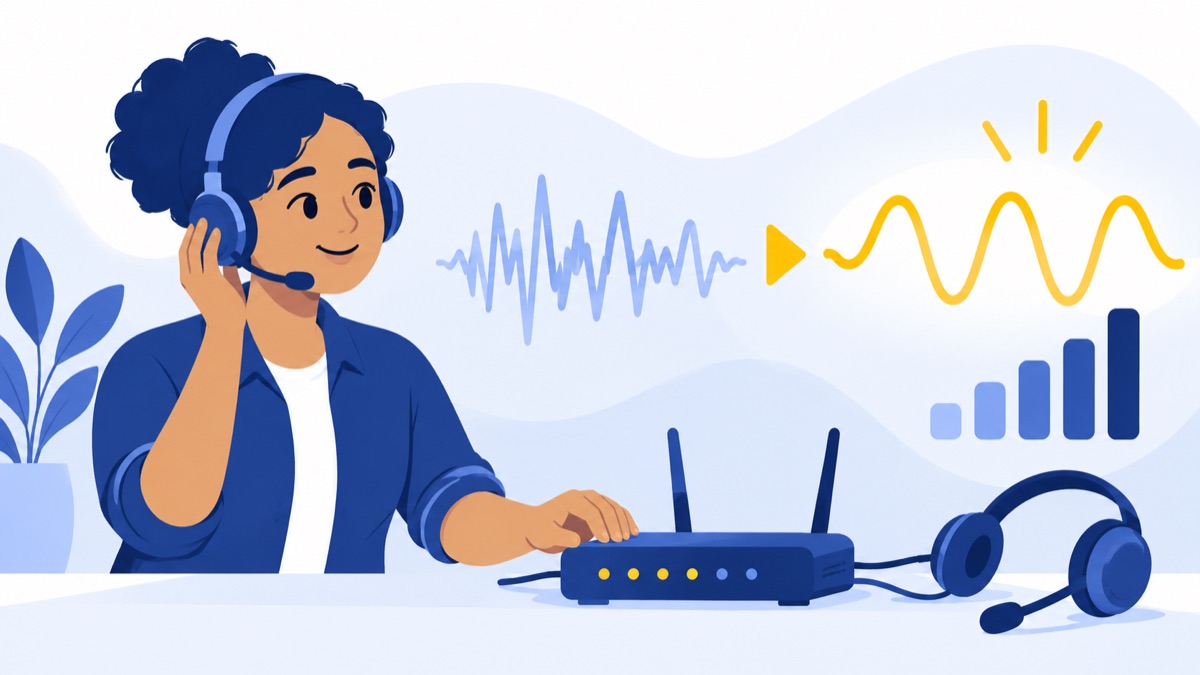
A useful quality check repeats calls from the actual work location, tests both wired and wireless connections, and compares results during quiet and busy network periods. Check service diagnostics and device settings, change one factor at a time, and record what changed so you can identify which adjustment helped.
Use this repeatable test
- Place an inbound and outbound call from each intended location and device type.
- Repeat at a quiet time and during normal peak network use.
- Compare a wired Ethernet call with a Wi-Fi call from the same location.
- Confirm the selected microphone, speakers, headset, and app permissions.
- Check provider call diagnostics for available latency, jitter, packet-loss, and connection details.
- Make one change at a time, then repeat the same call test.
- Record the time, affected user, device, network connection, symptom, and test result before escalating.
Why is a VoIP call choppy, delayed, or silent?
Call symptoms help narrow down likely causes, but they do not prove which device or service is responsible. Start with the simplest repeatable check: compare another device or network connection, review service diagnostics, and note whether the problem affects one user or several.
| Symptom | Likely causes | First check |
|---|---|---|
| Choppy or robotic audio | Packet loss, jitter, Wi-Fi interference, or network congestion | Compare Ethernet with Wi-Fi and check diagnostics during the affected call. |
| Delayed audio or callers talking over each other | High latency or a long network route | Check call diagnostics and repeat from a less congested connection. |
| One-way audio or silence | Blocked or interrupted media path, router or firewall behavior, or device audio settings | Confirm microphone and speaker selection; ask IT to review provider network requirements. |
| Echo | Speaker audio feeding back into a microphone, headset trouble, or room acoustics | Use a headset, lower speaker volume, and test another device. |
| Calls fail to connect | Incorrect destination, user or number configuration, service availability, or connectivity | Try another known number, then check account status and the service’s call diagnostics. |
| Calls drop | Unstable connectivity, device power or app problems, or network interruption | Note the time and affected users, then compare another device and connection. |
Microsoft associates choppy or robotic audio with packet loss that may result from excessive jitter, one-way audio with connection or media-path problems, and delayed audio with excessive latency. Microsoft’s VoIP quality troubleshooting guide
Does VoIP work without internet, power, or 911 access?
VoIP requires a working connection and powered devices, so a power or internet outage can interrupt calls unless you have a suitable backup arrangement. CISA notes that computers, routers, and adapters generally need power, and heavy use of the same internet connection can affect call quality or availability. CISA’s VoIP overview
Keep the registered 911 address current
911.gov advises VoIP users to register their physical address with their provider because a call center may not be able to locate a VoIP caller automatically. Update the address when the service moves, and check your provider’s procedures for emergency calling. 911.gov’s VoIP guidance
VoIP call setup and quality checklist
Before launch, verify each user, number, route, device, and calling location with a real test call. A short checklist helps small sales and support teams catch configuration and network problems before customers rely on the new phone setup.
- Users can sign in and make outbound calls from their assigned devices.
- Business numbers receive calls and show the intended caller ID on outgoing calls.
- Business hours, menus, queues, transfers, and voicemail behave as configured.
- Calls work on the intended network, with a wired-versus-Wi-Fi comparison where possible.
- Quality has been checked during quiet and busy network periods.
- The team knows who to contact and what diagnostic details to collect if a call fails.
- The registered service address and provider’s 911 procedures have been checked.
- Sales and support workflows are configured for the people handling the calls; explore Voicalyst’s phone system for sales teams or phone system for support teams.
To see how Voicalyst’s business calling features fit your team’s workflow, visit Voicalyst.
Frequently Asked Questions
How does a VoIP call work?
A VoIP call converts your voice into digital audio and sends it over an IP network. The calling service uses signaling to locate the other person and set up the call; then the endpoints exchange audio packets, often using RTP. The receiving device reassembles and plays the audio. When someone hangs up, signaling ends the session.
What do you need to make a VoIP call?
You need a VoIP service or app, a supported calling device, and a working network connection. Depending on the service, you can use a browser softphone, desktop or mobile app, IP desk phone, or supported analog phone adapter. A headset can reduce room noise, but a fast internet plan alone does not guarantee clear calls.
Can you make a VoIP call from a computer or browser?
Yes. Many business calling services support a browser softphone or desktop app, so you can call using a computer, microphone, speakers or headset, and an internet connection. Allow microphone access, select the correct audio devices, and test from the location where you plan to work.
How much bandwidth does a VoIP call use?
Bandwidth depends on the audio codec, packet interval, network overhead, and service configuration. Cisco estimates an example G.711 call at 80 kbps including headers and notes that a 64 kbps link cannot carry that example without packet drops. Plan for simultaneous calls and other network traffic, and check your provider’s guidance.
Can a VoIP call reach a regular phone number?
Yes, if your VoIP service connects to the public telephone network. A provider or gateway can route a VoIP call to a regular US phone number and route calls in the other direction too. Calls between users on the same IP calling service may stay within that service.
What is the difference between SIP and RTP?
SIP is a signaling protocol commonly used to establish, manage, and end calls. RTP commonly carries real-time audio after a call is set up. The protocols have different jobs, and systems vary. A call may connect successfully while a separate media-path problem leaves callers unable to hear each other.
Can you call 911 with VoIP?
Many VoIP services support 911, but emergency calling steps and location handling depend on the provider and service. Register your physical service address, update it whenever the service moves, and confirm the provider’s procedures. According to 911.gov, a 911 call center may not be able to locate a VoIP caller automatically.