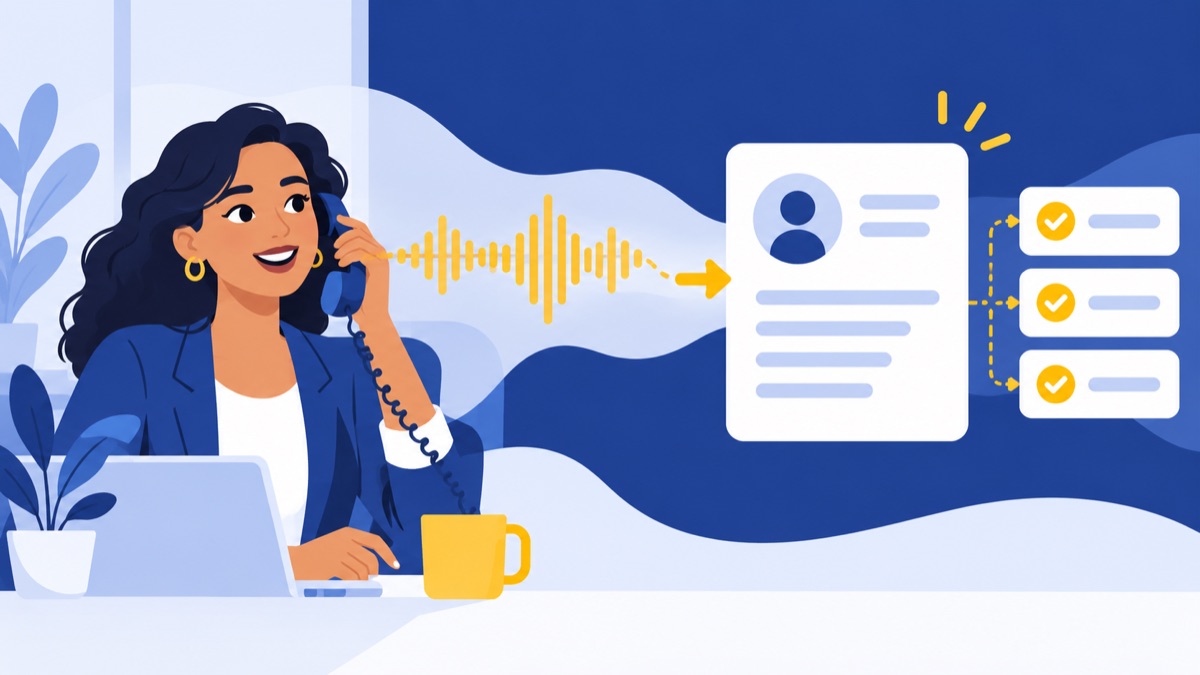
A phone system can turn call recordings into CRM notes by sending supported recordings, transcripts, AI summaries, and action items to the right customer record. For teams researching phone system call recording to CRM notes, the key buying question is whether the system logs the details your team needs—and whether a suggested follow-up becomes an actual CRM task.
Key takeaways
- Dialpad’s HubSpot integration can log calls and, when enabled and eligible, add recording links, summaries, transcripts, recaps, action items, and CSAT.
- JustCall says CRM updates with AI data may take 15–20 minutes after a call ends.
- An action item inside a call summary is not necessarily a CRM task with an owner and due date.
- Contact matching, supported call types, plan eligibility, and CRM permissions can determine which call details sync.
- Recording consent requirements vary by state, so businesses should check applicable rules and configure notices and access controls.
Which phone systems turn call recordings into CRM notes?
Dialpad, Aircall, and JustCall are examples of phone systems that can send call data to supported CRM records, including summaries and action items in some configurations. “CRM notes” can mean several different things, so compare the fields, call coverage, plan requirements, and task behavior for your CRM before choosing a system.
What “CRM notes” can mean
A call log is a CRM activity showing that a call occurred, often with its time, direction, duration, and participants. A recording link opens the audio; a transcript is the call’s words converted to text. An AI summary is a condensed account of the conversation, while extracted action items are suggested next steps.
A CRM task is a separate record that can have an owner, due date, status, and reminder. A system may write “send pricing on Friday” in a summary without creating a task for anyone. Ask vendors to show the synced CRM record, not just a sample AI recap.
HubSpot’s 2024 Sales Trends Report found that surveyed sales representatives spent about two hours per day actively selling and about one hour on administrative tasks. That is survey data, not a universal benchmark, but it helps explain why teams look for reliable call logging and follow-up workflows. HubSpot’s 2024 Sales Trends Report
How does a phone system turn a call recording into a CRM note?
A phone system turns a call into CRM notes by capturing the call, generating any available transcript or analysis, matching a phone number to a CRM record, and writing configured fields as an activity or note. Each step can succeed or fail independently, so a visible call log alone does not prove that the summary or recording synced.

From call to follow-up
- Record and transcribe: The system captures audio if recording is enabled and generates a transcript if the plan and settings allow it.
- Summarize and extract: AI may produce a recap, sentiment or topic labels, and suggested action items.
- Match the CRM record: The integration searches supported CRM fields for the caller or dialed number, and sometimes other identifiers.
- Write the CRM data: The integration logs an activity, attaches text or links, and may create tasks if that capability is configured and supported.
Treat the fourth step as something to verify. “Action item detected” describes content, not necessarily a task object assigned to a team member.
Which phone systems sync call summaries and action items?
Dialpad, Aircall, and JustCall each describe ways to connect call data with CRM records, but the specific fields and conditions differ. Compare the documentation for your CRM and plan, then verify behavior in a trial: a feature listed for one CRM integration may not be available for another.
Dialpad: CRM-specific AI fields and logging controls
Dialpad’s HubSpot help documentation says its integration can log calls as activities and, when enabled, add recording links, AI-generated summaries, transcripts, recaps, action items, and CSAT. Its documentation also lists setup and plan eligibility requirements, so confirm those for the account you intend to use. Dialpad for HubSpot
CRM fields matter. For Zoho CRM, Dialpad says matching uses standard name, email, phone, and mobile fields; numbers stored in Zoho custom fields are not supported. The same documentation says Zoho recording access is limited to Contact Centers and Coaching Team calls, while Mainline and Department recordings are not supported there. Dialpad for Zoho CRM
Aircall: recording and AI analysis
Aircall describes AI call summaries, topics, action items, and sentiment analysis. It also says recordings sync with Salesforce, HubSpot, Zendesk, and other apps. Treat these as vendor-reported capabilities and confirm the CRM-specific fields, call types, and plan requirements before relying on them. Aircall call recording
JustCall: AI data and configurable CRM logging
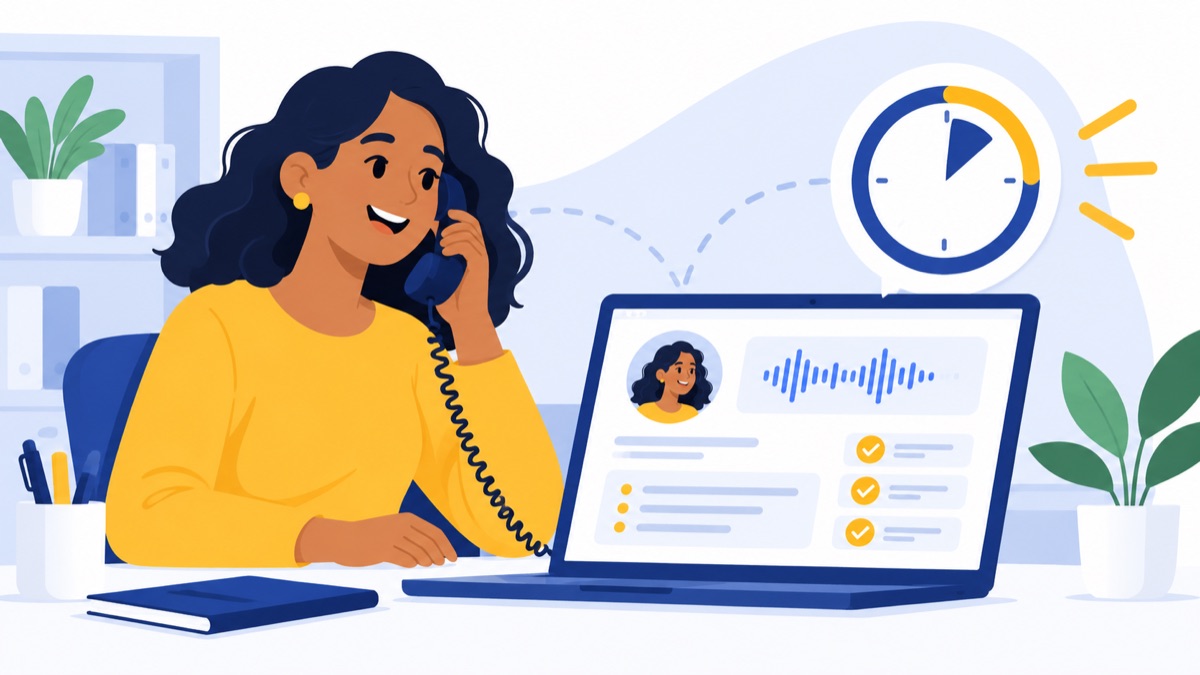
JustCall’s CRM logging guide lists supported integrations for AI data, which may include transcription links, call summaries, and action items. It says CRM updates may take 15–20 minutes after a call ends, so make sure your team knows when to expect the completed activity and how to handle a delayed sync. JustCall AI data logging guide
Custom webhooks and automation
If a native integration does not send the fields you need, a webhook or an automation service such as Zapier or Make may pass call events into your CRM. This usually requires mapping the phone number to a record, deciding which data becomes a note versus a task, and handling errors or duplicates. Confirm that the phone system exposes the events and data your workflow needs before building it.
What should you verify in a CRM integration?
A CRM integration is a fit only if it supports your CRM setup, matches contacts reliably, covers the calls your team handles, and writes the fields your workflow needs. Before committing, check these points with your actual CRM account and subscription rather than relying on a generic integration overview.
- CRM, modules, and plan: Confirm your CRM edition, supported record types, and the phone system plan required for AI summaries, transcripts, or recording links.
- Contact matching: Find out which fields are searched. Test custom phone fields, formatted numbers, shared business numbers, and duplicate contacts.
- Call coverage: Check inbound and outbound calls separately, plus missed calls, transferred calls, shared lines, and calls answered by a queue.
- Synced fields: Identify whether each call produces an activity, recording link, transcript, summary, action items, and a task—or only some of these.
- Sync timing and errors: Ask when post-call processing finishes, where failures appear, and whether an administrator can retry a failed sync.
- Permissions and retention: Check who can open recordings and transcripts, how long they remain available, and what audit history administrators can review.
A call can log without linking to the right person. If numbers are unmatched or ambiguous, ask how the integration handles them: for example, whether it leaves an unassociated activity, creates a new record, or queues the call for review. Those details affect data quality and follow-up ownership.
How can you test a phone-to-CRM integration in 10 minutes?
A short test can show whether inbound and outbound calls attach to the intended records and whether the fields your team needs actually appear. Use one known CRM contact and one number with no matching record, then verify the activity, summary, transcript, recording access, and any requested task from inside the CRM.
Run the test
- Call a known contact inbound. Confirm the call attaches to the expected contact and the activity shows the correct direction and time.
- Call a known contact outbound. Check whether the same fields appear and whether the outbound activity links to the intended record.
- Call from an unknown number. See whether the call remains unmatched, creates a new contact, or follows another rule.
- Ask for a clear follow-up. Say something specific, such as “Jordan will email the updated quote by November 3.” Check whether that appears in the summary and whether the CRM creates a separate task with an owner and due date.
- Review every synced item. Open the activity and verify the recording link, transcript, summary, and access permissions. Allow for documented processing delays.
- Inspect failures and duplicates. Check the integration’s error logs or admin view, then verify how an administrator finds and corrects unmatched calls.
A successful test means the expected call data is attached to the correct record, the right people can access it, and follow-up work appears where your team manages tasks.
What should a business check about recording consent and AI data?
Businesses should check the recording and consent requirements that apply to their calls, then configure notices, recording controls, access, and retention accordingly. US requirements vary by state and circumstance; this overview is practical buying guidance, not legal advice. Consult an attorney about the rules applicable to your business.
The FTC notes that state laws vary on whether and how consent must be obtained to record telephone conversations, and advises consulting an attorney for applicable requirements. The Reporters Committee for Freedom of the Press maintains an informational state-by-state guide and explains that consent rules differ across jurisdictions. FTC guidance · State recording laws guide
As part of implementation, review how the phone system announces recording, whether agents can pause or stop it, who can access audio and transcripts, and how long those records are kept. Also review how AI summaries are handled, since they may contain customer details even when they are shorter than a transcript.
How should a sales or support team choose a phone system?
Choose based on how accurately the system matches CRM records, which call details it syncs, whether follow-ups become usable tasks, and how well it covers your actual call workflow. For teams using HubSpot, include the integration requirements in your evaluation; for browser-based US teams, Voicalyst offers HubSpot sync and AI call summaries.
Teams comparing options can also review guidance on small business phone system costs, features, and setup and choosing a cloud-based VoIP phone system. Focus on the CRM and plan you use today, then run the same test call sequence against each shortlisted system.
Voicalyst is a browser-based business phone option for US sales and support teams. Its AI call summaries and HubSpot calling integration may fit teams that want call context alongside HubSpot activity. Confirm the specific fields and workflow in a trial; AI summaries do not by themselves establish that CRM tasks are automatically created. Explore Voicalyst’s business phone system to see whether it fits your team.
Frequently Asked Questions
Which phone systems automatically add call summaries to a CRM?
Dialpad, Aircall, and JustCall document ways to send call data to supported CRMs, including summaries in some configurations. Available fields depend on the CRM, subscription plan, call type, and integration settings. Confirm that summaries attach to the right contact and check whether action items appear as text or become assigned CRM tasks.
Can a phone system turn a call recording into CRM notes and follow-up tasks?
Some phone systems can record or transcribe calls, generate summaries, and log those details to a CRM. A suggested action in a summary is not necessarily a CRM task with an owner and due date. During a trial, ask for a specific follow-up and verify that the CRM creates a separate task on the expected record.
How do phone systems match a call to the right CRM contact?
Most integrations use caller or dialed phone numbers to find a CRM record, sometimes alongside a name or email address. Matching can fail when a number is stored in a custom field, formatted differently, or shared by multiple contacts. Test known, unknown, duplicate, inbound, and outbound numbers before rollout.
What should a business check before recording customer calls?
Check the requirements that apply to the states and callers involved, and review the phone provider’s notice, pause, access, storage, and retention controls. Consent rules vary by jurisdiction. The FTC recommends consulting an attorney about applicable requirements; this checklist is operational information, not legal advice.