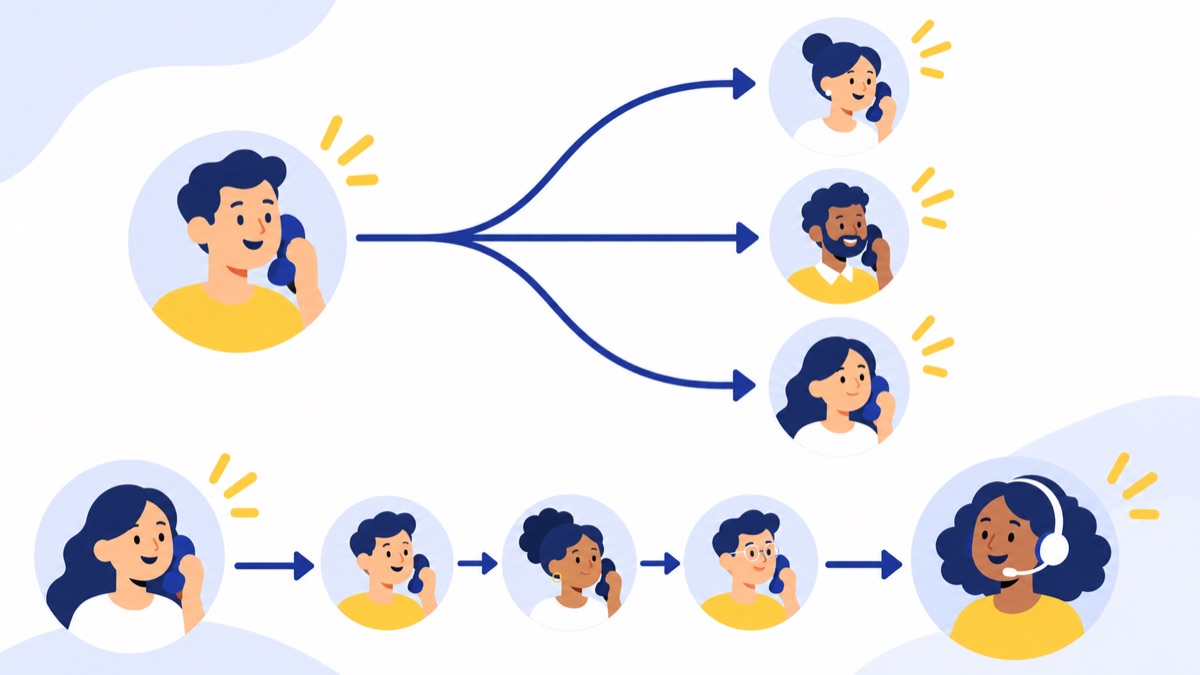
A HubSpot call logging integration should sync enough information to show who called whom, when it happened, who handled it, what happened, and what the team should do next. This guide gives you a practical field checklist, setup preflight, and repeatable tests for inbound, outbound, missed calls, dispositions, and follow-up tasks. Exact fields and automation depend on your HubSpot account and phone provider.
Key takeaways
- A reliable HubSpot call log includes direction, timestamp, duration, caller and callee numbers, owner, status, outcome, notes, and record associations.
- Call status describes the connection event, while call outcome describes the result, such as “Connected” or “Left voicemail.”
- HubSpot documents up to 30 custom call outcomes, which can be used in workflows and segments; custom outcomes are available with Sales or Service Hub Professional or Enterprise.
- Test inbound, outbound, missed, voicemail, each configured outcome, and follow-up tasks against both a known contact and an unmatched number.
- HubSpot’s call index can show fields such as owner, notes, associations, outcome, recording URL, direction, and source, making it a useful post-call verification view.
What does a HubSpot call logging integration do?
A HubSpot call logging integration sends call activity from HubSpot or a connected phone system into CRM records, so teams can review conversations and follow up in context. Depending on the setup, the integration may also show caller details during a call, attach media or summaries, and provide call data for reporting; field coverage varies by provider and HubSpot configuration.
Manual call logging vs. HubSpot calling vs. a connected phone system
Manual call logging means a user creates a call activity on a HubSpot record after a conversation. HubSpot calling lets users place or receive calls through HubSpot’s calling tools, subject to account access and available features. A connected external business phone system links the provider’s calling activity with HubSpot, but the provider determines which events and fields it sends.
These options can coexist. For a provider-neutral overview of setup choices and workflows, see the HubSpot phone integration guide.
What does sync behavior depend on?
A call activity is HubSpot’s record of a call, with fields and associations that can appear on a contact or other CRM record. The integration determines whether events such as inbound calls, outbound calls, missed calls, and voicemail create those activities, and whether fields like duration, outcome, or recording URL are populated. HubSpot says third-party calling integrations may log to its call index, which can include inbound and outbound calls and missed calls when the provider supports them.
HubSpot’s call index displays call status, owner, notes, associations, outcome, recording URL, direction, and source. Use those fields as a verification list, while confirming which ones your provider supplies in HubSpot’s call index documentation.
What call data should you sync to HubSpot?
Sync the fields your team needs to identify the call, understand its result, and take the next step. Make direction, time, duration, phone numbers, owner, status, outcome, notes, and record associations your core checklist; add recordings, transcripts, summaries, voicemail details, and routing context only when they serve a clear workflow and your policies allow them.

Core fields every team should verify
| Field | Why it matters | What to check |
|---|---|---|
| Direction | Separates incoming from outgoing activity | Inbound or outbound is correct |
| Date and time | Establishes sequence and reporting period | Time zone and call start time are sensible |
| Duration | Helps teams review activity and call patterns | Connected duration is not mistaken for ring time |
| Caller and callee numbers | Helps identify participants and diagnose matching | Numbers are normalized and correspond to the actual call |
| Owner | Shows who handled the interaction | Provider user maps to the correct HubSpot owner |
| Status | Indicates whether the call connected or went unanswered | The event reflects the call state |
| Outcome or disposition | Describes the result and can support automation | The selected value matches the conversation |
| Notes or summary | Preserves context for colleagues | Notes are readable and attached to the right activity |
| Associations | Connects the call to relevant CRM work | Contact, company, deal, or ticket links are accurate |
HubSpot’s call index can help verify several of these fields in one place. For example, confirm the owner, notes, associated records, outcome, direction, and source after each test call.
Optional fields: recordings, transcripts, and routing context
Optional call data can improve coaching and follow-up, but it adds access, retention, and data-handling considerations. Recordings, transcripts, AI summaries, voicemail details, tags, IVR selections, routing data, and SMS activity may depend on the provider, plan, and configuration; decide which fields are useful, who can view them, and how long they should remain available.
If your process requires them, verify that the integration stores a working recording link or summary on the right call activity. Voicalyst offers call recording and AI call summaries as options; confirm how any enabled feature sends data to HubSpot before relying on it.
How should calls match HubSpot records?
Match a call to the intended contact using the phone number, then verify any relevant company, deal, or ticket association. A contact’s number may be stored in a phone field or mobile phone field, and the same number may appear on multiple records; test these edge cases rather than assuming the first match will be correct.
Decide what should happen when HubSpot has no matching record. Depending on the integration, an unknown caller may stay unassociated, create a contact, or require manual review. Document the expected behavior and test it with a number that is not already in the CRM.
How do you set up the integration before testing?
Before testing calls, verify account access, linked phone numbers, provider-user mapping, number formatting, contact matching, and the treatment of unknown callers. Standardize the outcomes and follow-up rules your team expects, then confirm which features are available under your HubSpot plan and provider configuration.
Check access, phone numbers, and user mapping
Use this preflight sequence:
- Confirm the HubSpot users who need the integration have the required permissions and access to relevant records and calling features.
- Verify that the HubSpot account and phone provider are connected and authorized.
- Link each provider number that should create call activity. Some providers require at least one linked number; Aircall’s setup documentation, for example, describes that requirement and offers a test call log as a setup check. These are provider-specific details, not universal HubSpot rules.
- Map each provider user to the correct HubSpot user so call ownership is assigned consistently.
- Confirm number formatting and how the integration handles country codes, extensions, and duplicate phone values.
- Decide whether unmatched callers should create a contact, remain unassociated, or enter a manual review process.
For a broader comparison of CRM synchronization fields and setup depth, see how to evaluate VoIP options for HubSpot.
Standardize call status, outcomes, and follow-up rules
Call status and call outcome answer different questions. Status describes the connection event, such as whether a call was answered or missed; outcome describes what happened in the conversation, such as a connection, voicemail, or wrong number. Define both so teams and reports use values consistently.
HubSpot lists default call outcomes including Busy, Connected, Left live message, Left voicemail, No answer, and Wrong number. It supports up to 30 custom call outcomes, available with Sales or Service Hub Professional or Enterprise, and custom outcomes can be used as workflow and segment filters. HubSpot also notes that custom outcomes cannot be edited after saving, so agree on names before creating them. See HubSpot’s call outcome documentation.
Write down the disposition rules in plain language—for example, when to choose “Connected” versus “Left live message.” Then specify which outcomes should prompt a follow-up task, what task type to create, and the due date rule. HubSpot supports choosing a task type and due date when logging an activity, but do not assume a phone integration creates or prompts for tasks automatically. For outcome examples, use the sales team call disposition guide.
How do you test a HubSpot call logging integration?
Run every test with a known contact and repeat the unmatched-caller scenarios with a number that has no CRM match. After each call, verify the activity timeline and Calls index for timestamp, direction, duration or status, owner, outcome, notes, associations, and any expected media link; record normal sync delay before judging results.
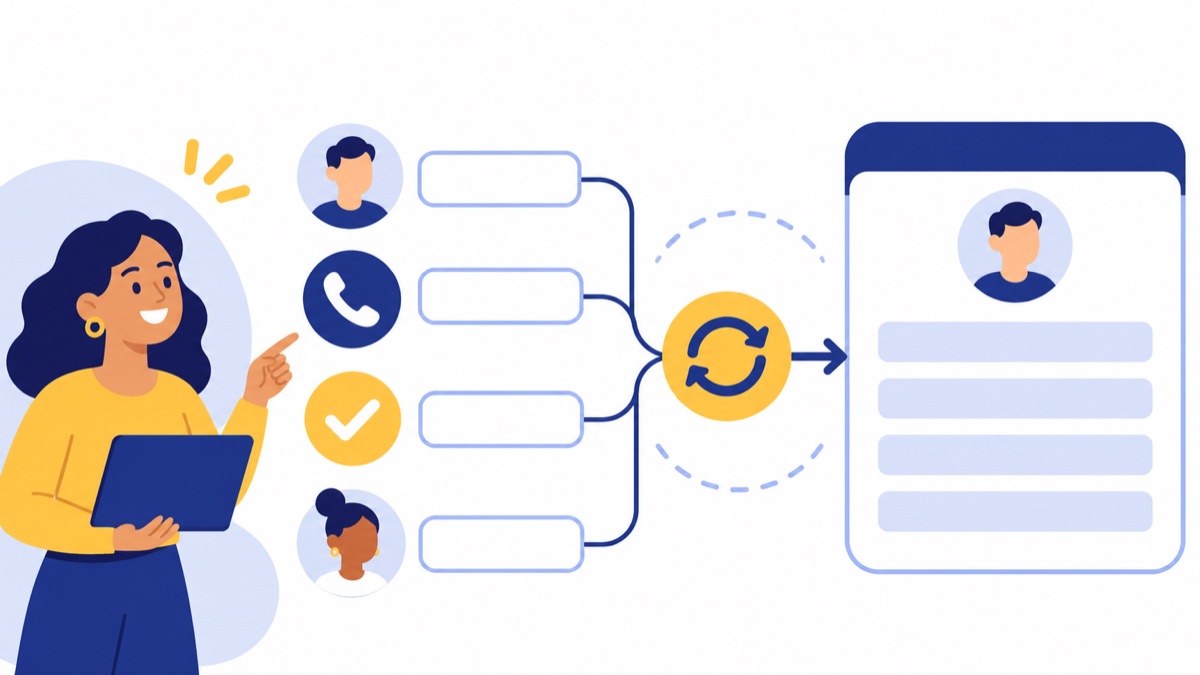
| Scenario | Action | Expected result |
|---|---|---|
| Inbound answered | Call a linked business number from a test contact’s phone | One inbound activity appears on the correct contact with an appropriate owner, timestamp, duration, and outcome |
| Outbound answered | Call a test contact from the provider app or business number | One outbound activity appears with the correct owner, destination, duration, and association |
| Missed or unanswered | Call the linked number and do not answer | The expected missed or no-answer event appears, with no false connected duration |
| Voicemail | Leave a message after the call goes unanswered | The activity reflects the expected status or outcome; voicemail details or transcription appear only if supported and enabled |
| Each configured disposition | Complete a test call and assign every outcome your team uses | The selected outcome appears on the call and is available to any intended filter or workflow |
| Follow-up task | Use the outcome that should prompt a next step | A task is created or prompted as designed, with the correct owner, task type, due date, and record association |
| Unknown caller | Repeat inbound and missed tests from a number absent from HubSpot | The call follows the documented unmatched-number rule without attaching to an unrelated record |
For every scenario, verify the contact timeline and CRM Calls index. Check whether the activity also appears on the right company, deal, or ticket, whether the owner matches the person who handled it, and whether workflow triggers fire only for the intended status or outcome.
HubSpot reported 53 million business connections among 78 million U.S. wireline retail voice connections in June 2025, including switched access and interconnected VoIP. The figure gives context for business voice use; it does not determine which fields any particular integration can sync. ContactBabel’s 2025 U.S. contact center guide reports a mean call abandonment rate of 8.9% and median of 5.0% among surveyed centers, one reason to test and track missed or abandoned calls explicitly (FCC data; ContactBabel report).
Why are calls missing or attached incorrectly in HubSpot?
Missing or incorrect call logs usually trace back to connection status, unlinked numbers, user mapping, number matching, sync delay, or unsupported fields. Check one cause at a time, correct it, and repeat the relevant test so you can tell whether the change fixed the problem.
No call activity appears
Check whether the integration is active and authorized, the calling number is linked, and the test user is mapped to a HubSpot user. Confirm that the provider supports logging for the event you tested; inbound, outbound, missed calls, and voicemail may be handled differently.
Wait for the normal sync interval you recorded during preflight. If the call still does not appear, check integration status and permissions, then run a fresh test. Use the symptom-based HubSpot call logging troubleshooting guide if you need a focused fix list.
The call is linked to the wrong contact or duplicated
Compare the caller or callee number with the phone and mobile phone values on CRM records. Look for duplicate numbers, old numbers, inconsistent country codes, and formatting differences. Then test with one known contact whose number is unique and normalized.
If duplicate call activities appear, check whether both HubSpot calling and the external provider are logging the same event, or whether a retry creates a second record. Confirm the intended single source of call activity and re-run the same scenario after adjusting the setup.
Owner, outcome, recording, or task data is missing
Check whether the provider sends the field, whether the provider user maps to an active HubSpot user, and whether your plan and integration settings support the feature. A missing recording URL or transcript may reflect disabled capture, access restrictions, or provider behavior rather than a failed core call log.
For a missing follow-up, inspect the workflow enrollment rules or task prompt and verify the exact outcome value sent by the provider. Keep a record of what your configuration actually syncs, including expected delays and unsupported fields.
What should be on the go-live checklist?
Launch when each tested call type creates the expected activity, the important fields and associations are accurate, duplicates are controlled, and workflows and tasks behave as designed. Keep the test matrix and observed sync behavior with your setup notes so future changes can be checked against the same pass criteria.
Pass criteria for launch
- Inbound answered, outbound answered, missed, voicemail, and unmatched-number tests have documented results.
- Direction, timestamp, duration, phone numbers, owner, status, and outcome match the expected call.
- Activities associate with the right contact and, where applicable, company, deal, or ticket.
- Notes, recordings, transcripts, summaries, and voicemail details appear only when expected and permitted.
- Every configured disposition and follow-up rule has been tested, including task owner and due date.
- No duplicate activities or incorrect contact matches remain in the test set.
- Normal sync delay and any provider-specific limitations are documented.
After launch, sample real call logs periodically and review whether ownership, associations, outcomes, and follow-up tasks remain accurate. Voicalyst’s HubSpot calling integration is one option to evaluate against your required fields and test cases; exact integration behavior varies by provider and HubSpot setup.
Frequently Asked Questions
How do I automatically log calls in HubSpot?
Connect HubSpot to your business phone provider, authorize the right users, link the phone numbers that should create activity, and map provider users to HubSpot owners. Then place test inbound and outbound calls and check the contact timeline and Calls index. Automatic logging, supported fields, and required HubSpot access vary by provider and account setup.
What call details should a HubSpot integration sync?
Verify direction, date and time, duration, caller and callee numbers, owner, status, outcome, notes or summary, and associations to the right contact, company, deal, or ticket. Treat recordings, transcripts, voicemail details, tags, and routing context as optional because availability, permissions, and retention depend on the provider and HubSpot setup.
Can HubSpot call outcomes trigger workflows?
HubSpot call outcomes can be used in workflows and segments when the relevant outcome is available to the account. HubSpot documents up to 30 custom call outcomes, available with Sales or Service Hub Professional or Enterprise; custom outcomes cannot be edited after saving. Test that your integration sends the expected outcome before relying on it in automation.
Can missed calls and voicemails be logged in HubSpot?
HubSpot’s call index can include missed calls and supported provider activity, but exact behavior depends on the phone integration. Test a missed call and a voicemail separately: confirm whether each creates a call record, how status and outcome are set, whether voicemail details or a link appear, and whether the event is associated with the correct record.