
A HubSpot phone integration connects business calls—and, depending on the provider, texts—to CRM records so sales and support teams can call from HubSpot, review activity, and follow up with context. Set one up by checking plan and permission requirements, connecting a supported phone system, mapping the fields your team needs, then testing calls, texts, and outcome-based workflows before rollout.
Key takeaways
- HubSpot native calling is available in the United States and Puerto Rico to users with an eligible paid Sales Hub or Service Hub seat, subject to current account requirements.
- A connected provider may sync call direction, duration, outcome, owner, notes, and recording links, but the fields vary by integration.
- HubSpot documents a Call ended event for calls made through HubSpot or third-party integrations; manually logged calls do not enroll through that event trigger.
- HubSpot accounts can create up to 30 custom call outcomes for workflow and segment filters, subject to subscription eligibility.
- SMS logging records messages; it does not establish consent to send future automated texts.
What does a HubSpot phone integration do?
A HubSpot phone integration connects a phone system with CRM records so staff can place calls and review activity on the associated contact, company, or deal timeline. Depending on the provider and account, it may support inbound calling, caller matching, call and SMS logging, recordings, notes, and AI summaries. The integration’s actual field and workflow support should guide your setup.
A HubSpot VoIP integration connects HubSpot to a voice-over-internet-protocol service, which carries calls over an internet connection. It can make a contact’s phone number actionable in HubSpot and sync call details after the conversation, but the provider and your HubSpot plan determine which features are available.
HubSpot’s calling overview describes its native calling features. Third-party options may be listed in the HubSpot App Marketplace, or a provider may build an integration using HubSpot’s Calling SDK. Check HubSpot’s global calling availability: the United States and Puerto Rico are listed as supported for native calling, with an eligible paid Sales Hub or Service Hub seat required.
Native HubSpot calling or a third-party phone system?
Native calling keeps setup within HubSpot and may fit a small team that needs basic calls tied to CRM activity. A third-party system may be a better fit when your team needs business numbers, call queues, phone menus, voicemail, power dialing, texting, routing, or provider-specific recording and summary features. Compare these needs against your current plan and integration documentation.
Start with a short requirements list: which teams need calling, whether they receive inbound calls, how calls should be routed, and which activities should appear in HubSpot. For broader selection criteria, see this guide to choosing a VoIP phone system for business and this overview of AI call summaries for business phone systems.
How do you set up automatic call and text logging in HubSpot?
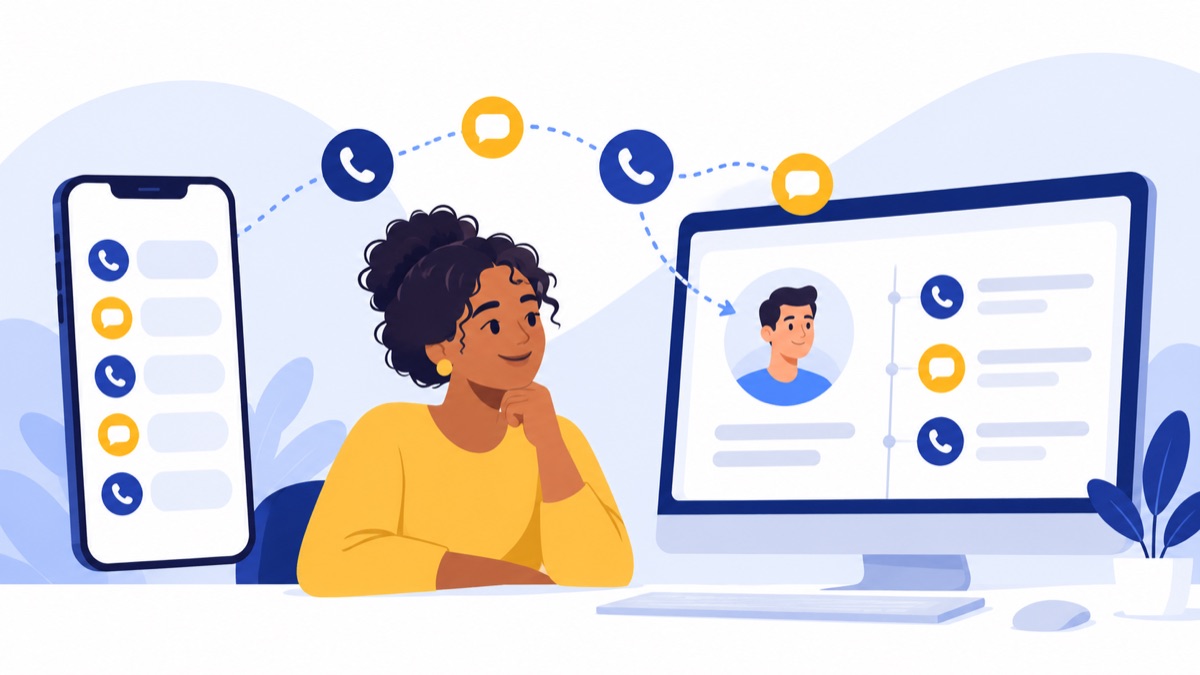
To log calls automatically in HubSpot, connect a supported calling provider, authorize its access, enable activity syncing, and configure contact-association rules. Then map the fields your team needs, place test calls, and confirm the resulting activity on the HubSpot timeline. Text logging may have separate settings, so test messages as a distinct activity type.
1. Check access, plans, and provider support
Confirm that you have permission to install apps, manage calling, and edit workflows in HubSpot. Check the provider’s integration documentation for supported HubSpot plans, countries, phone numbers, and any required user seats or phone licenses. A provider’s general feature page may not list the limitations that apply to its HubSpot connection.
Write down what the team needs before installation:
- Inbound and outbound calling
- Text messaging and message logging
- Call queues, routing, or phone menus
- Recordings, notes, or AI summaries
- Power dialing or other sales tools
- Call outcomes and workflow triggers
If a required feature is missing from the integration documentation, ask the provider which HubSpot fields it updates and whether the feature requires a separate setting or subscription.
2. Install and authorize the integration
Install the provider’s app from the HubSpot Marketplace or follow its documented connection steps. Sign in with an administrator account if required, review the permissions requested, and connect the correct provider account, users, and phone numbers. Make sure the connection belongs to the business account your team intends to use.
Record who owns the integration and where its settings live. That makes it easier to troubleshoot when a staff member changes roles, a phone number is reassigned, or an administrator needs to refresh permissions.
3. Choose what syncs and map the fields
In the provider’s integration settings, enable the activity types the team wants to log. Decide whether calls and messages should associate with contacts, companies, and open deals, and whether the integration should create records for unknown numbers. Map the fields before rollout so your reports and workflows use consistent values.
Use this table as a field-mapping checklist. Provider-dependent means the field may not be available or may use a provider-specific property.
| Phone-system data | HubSpot destination | Mapping or association note |
|---|---|---|
| Phone number/contact match | Contact association | Match the normalized number; test shared or duplicate numbers. |
| Call direction | Call activity property | Map inbound or outbound where supported. |
| Start time | Call activity timestamp | Check the account time zone and provider timestamp. |
| Duration | Call activity duration | Confirm how missed and very short calls appear. |
| Outcome | Call outcome property | Agree on a consistent set before creating workflows. |
| Owner | Activity owner | Map the calling user to the correct HubSpot user. |
| Notes or AI summary | Call notes or provider-specific field (provider-dependent) | Check whether notes sync automatically and remain editable. |
| Recording URL | Call recording link (provider-dependent) | Confirm that intended users can access the link. |
| SMS body | Message activity or provider-specific field (provider-dependent) | Test whether incoming and outgoing messages both sync. |
| Consent or opt-out status | Consent property or provider-specific field (provider-dependent) | Keep the status available to systems that control sending. |
Some integrations log only a call activity and a subset of its metadata. If notes, recordings, or SMS bodies matter, verify where each field appears and who can access it instead of assuming it will be visible on the contact timeline.
4. Set contact-matching rules
Decide how the system should handle unknown callers and phone numbers that match more than one record. A number shared by two contacts can attach activity to the wrong person; an unknown number can create an incomplete record or leave an activity unmatched, depending on provider settings.
Review number formatting, duplicate handling, and sync retry behavior. If an activity fails to sync, inspect the integration’s error details before manually logging it. Otherwise, the original activity may sync later and create a duplicate timeline entry.
5. Set a logging policy your team can follow
Choose which conversations must be logged and what staff should do when automatic logging fails. For example, a sales team might require an outcome and a next step after every connected call, while a support team might require a resolution status and a follow-up owner for unresolved calls. Keep required fields limited to information people can record reliably.
Give the team a simple fallback procedure: note the failed sync, check the provider’s error status, and use manual logging only after confirming the activity will not sync later. Document how to report repeated failures and who can correct associations or duplicates.
How can you build workflows that respond to call outcomes?
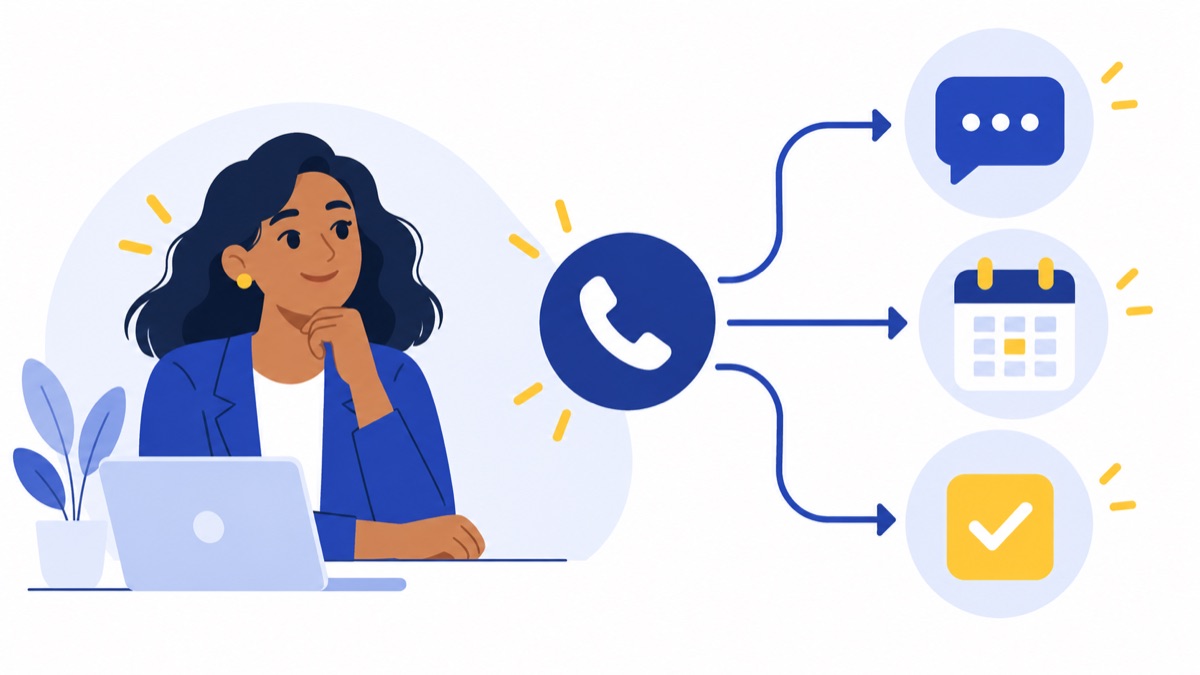
A HubSpot workflow can use an eligible call event or call outcome property to route follow-up, such as creating a task after no answer or notifying support after an unresolved call. HubSpot documents a Call ended event for calls made through HubSpot or third-party integrations, but manually logged calls do not qualify for that event trigger; account eligibility also matters.
Set consistent outcomes
Start with a small outcome set your team can apply reliably, such as Connected, No answer, Voicemail, and Support resolved. HubSpot says custom call outcomes can be used as filters in workflows and segments, and accounts can create up to 30 custom outcomes; check current subscription eligibility in its custom call and meeting outcomes documentation.
Use one label for one situation. A workflow cannot reliably treat “left message,” “voicemail,” and “VM” as the same result unless those values are standardized or mapped. Share brief definitions with the team, such as “No answer means the call rang without reaching the contact.”
Example: no answer creates a follow-up task
A no-answer workflow can give a rep a specific next step without requiring someone to scan every contact timeline. Build and test the workflow using an integrated call, then confirm that the task goes to the right owner and appears only when the intended outcome is recorded.
- Create a contact-based workflow using the Call ended event if the account supports it.
- Add a branch for the No answer outcome.
- Create a follow-up task for the call owner, with a due date and instruction such as “Try again and send an approved follow-up.”
- Make a test call and confirm the task owner, timing, and contact association.
If the outcome is set after the call ends, an enrollment rule based on the call outcome property may be more appropriate, if the account and integration support that property. Avoid enrolling contacts repeatedly unless re-enrollment matches your team’s follow-up policy.
Example: connected call routes next steps
A sales workflow can branch on Connected and create a task to send the agreed next step or update a deal stage after the rep records the call result. Add a guardrail, such as checking that the contact is associated with an open deal, so unrelated connected calls do not change pipeline records.
Keep the action tied to something the rep actually agreed to do. A generic task such as “Follow up” offers little guidance; “Send the pricing recap discussed on the call” is easier to complete and review.
Example: unresolved support call alerts the team
A support workflow can branch on a custom Unresolved outcome and notify the assigned owner or support queue. Include the contact link and a concise task so the next person can find the call context in HubSpot without searching manually.
Test the route with calls owned by different users. Confirm that the alert reaches the right queue and that the follow-up task remains visible if the original owner is unavailable.
How do you test the integration and troubleshoot sync issues?
Test inbound and outbound calls and at least one text before rolling a HubSpot phone integration out to the team. Inspect each activity on the contact timeline, confirm mapped values and associations, and review workflow history to verify the right trigger and follow-up action occurred. A short test plan can catch incorrect routing, duplicate records, and missing fields before the whole team depends on the connection.
Call and text QA checklist
- Call a known contact outbound; confirm direction, timestamp, duration, outcome, owner, and notes.
- Call the business number inbound from a known contact; verify caller matching and activity association.
- Call from an unknown number; check what happens to unmatched records.
- Test a number shared by duplicate contacts; confirm the activity reaches the intended record.
- Send and receive a test text; verify message body, direction, association, and consent or opt-out status where supported.
- Open any recording or AI summary link as a user who should have access.
- Trigger a test workflow for each outcome and inspect enrollment history and task ownership.
- Repeat a test after refreshing permissions or changing a connected user, if those changes are part of your planned setup.
Fix common logging problems
If calls are missing, check that the correct provider account and users are connected, call logging is enabled, and the integration still has the permissions it needs. Confirm that the test call used a supported number and that the provider reports it as a completed activity.
If a call appears on the wrong contact, review phone-number formatting, shared numbers, and matching rules. For duplicate activities, check whether both automatic sync and manual logging recorded the call, or whether a provider retry followed a temporary error. Correct the source of the duplication before deleting records so the same activity does not reappear.
If a workflow does not enroll, check its enrollment history, event type, outcome value, and plan eligibility. In particular, confirm whether the call was made through the integration or logged manually; HubSpot’s documented Call ended event excludes manually logged calls.
How should a team handle SMS automation responsibly?
Treat SMS logging and SMS sending as separate capabilities: an integration can record messages without proving that a recipient agreed to automated texts. Store consent and opt-out status where the sending system can check it, and test that opt-outs prevent later automated messages. Build that check into the workflow and provider setup before enabling automated sends.
The FCC states that text messages are treated as calls under the Telephone Consumer Protection Act (TCPA); applicable requirements depend on the circumstances, so review current rules and your consent and opt-out processes with qualified counsel. The FCC order provides the agency’s guidance.
The FTC’s FY 2024 Do Not Call Registry report records more than 2 million complaints and more than 253 million active registrations. Complaint totals reflect consumer reports, not a survey. Keep sending permissions and opt-out status accessible to the systems responsible for messaging, and have your team follow its approved compliance process.
For business numbers, call routing, texting, and HubSpot sync, Voicalyst is one option for U.S. sales and support teams. Review its HubSpot calling integration and business texting features against your requirements, then confirm current plan and integration details before connecting.
Frequently Asked Questions
Does HubSpot automatically log calls?
HubSpot can automatically log calls made through its calling feature or a connected provider, depending on sync settings and account eligibility. Confirm that calls associate with the right contact and that outcomes, owners, notes, and recordings sync as expected. Manually logged calls may not trigger the same event-based workflows as integrated calls.
Can HubSpot automatically log texts?
A connected phone provider may sync text messages to HubSpot, but SMS logging and automated sending are separate capabilities. Check whether your integration logs message bodies, associates them with contacts, and records consent and opt-out status. Logging a message does not establish permission to send future automated texts.
Can workflows trigger from call outcomes?
Eligible HubSpot workflows can respond to call events and call outcome properties, depending on the account subscription and how the call was created. HubSpot documents a Call ended event for calls made through HubSpot or third-party integrations; manually logged calls are excluded from that event trigger. Test enrollment before relying on a workflow.
What if my phone provider is not in the Marketplace?
Check whether the provider supports HubSpot’s Calling SDK or another documented integration method, and ask which call and text fields it can sync. If there is no supported connection, you may need a custom integration or manual logging. Verify permissions, plan requirements, and maintenance needs before choosing.