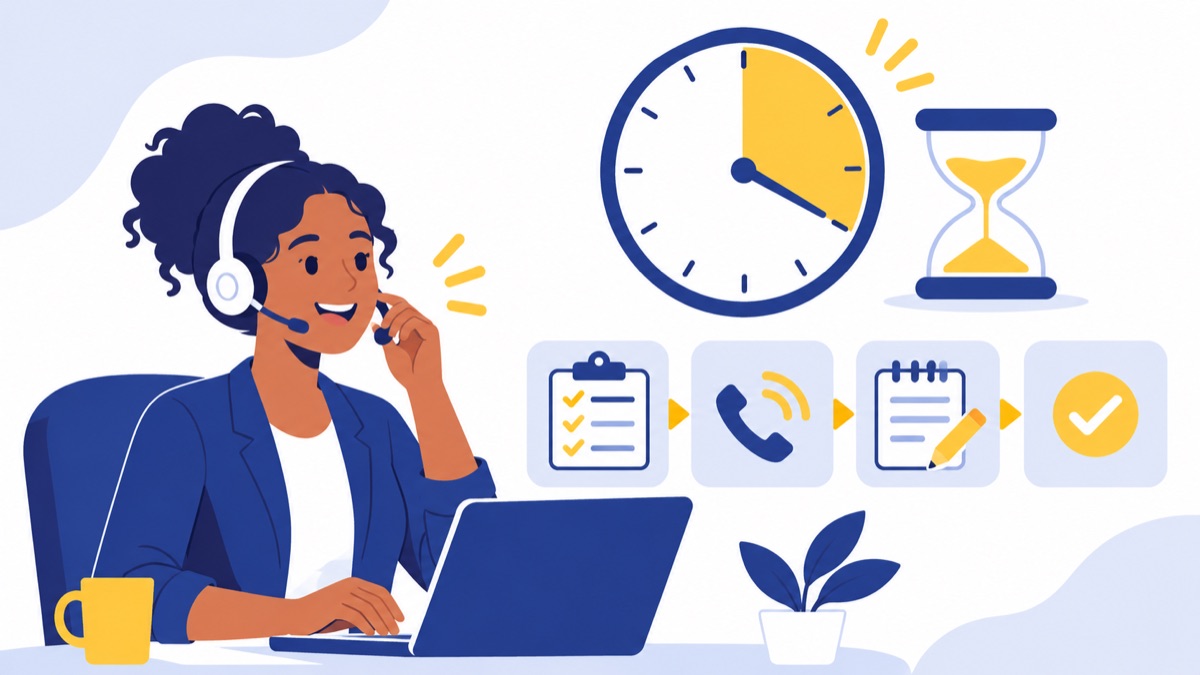
A business phone system setup checklist helps you prepare numbers, users, call routing, devices, and training before customers rely on the new system. Work through the steps in order: confirm number ownership, map your team, configure hours and call paths, test from every location, then port numbers and announce the launch. This day-one plan covers cloud and VoIP setups as well as optional desk-phone installation.
Key takeaways
- A number port can be delayed if the new request’s account name or service address does not match the current carrier’s records.
- The FCC says simple number ports generally are processed in one business day, but complex business multi-line ports may take longer.
- VoIP users should register their devices to a physical emergency address and update it when they move.
- Test calls across business hours, after-hours, transfers, voicemail, remote apps, caller ID, and outage forwarding before publishing the new number.
- Assign one launch owner to collect issues and coordinate fixes on go-live day.
Business phone system setup checklist at a glance
A reliable business phone system setup follows six stages: inventory numbers, design users and call paths, configure the system, test, port numbers, and launch. Cloud and app-based teams can skip most handset wiring, while desk-phone installations also need compatible phones, cabling, network equipment, and power checks.
The day-one sequence
Use this checklist as your working order:
- Inventory: List every business number and identify who controls each carrier account.
- Design: Map users, extensions, devices, work locations, hours, and customer call paths.
- Configure: Set greetings, routing, caller ID, voicemail, notifications, and essential integrations.
- Prepare: Check internet, Wi-Fi, devices, headsets, and outage fallback.
- Test: Run each call path from an outside phone and from office and remote networks.
- Port and launch: Transfer numbers, verify service, update public listings, and train the team.
Porting can take longer than system configuration. Start the port request early, but keep the old service active until the transfer is confirmed.
Who should own each task
Give every task a name and a deadline. A small business may assign one person several roles, but a single launch owner should track dependencies and decide when the system is ready.
| Task | Suggested owner |
|---|---|
| Number inventory and port request | Account owner or office manager |
| Users, roles, and emergency addresses | Team manager |
| Greetings, schedules, and routing | Customer support or sales lead |
| Network and device readiness | IT contact or installation lead |
| Test matrix and issue tracking | Launch owner |
| Team training and public updates | Office manager or communications lead |
If you are still comparing system types, use this guide to choosing a business phone system for your team. This article focuses on configuration and go-live.
1. How do you inventory numbers and confirm ownership?
Before you set up a business phone system, list every number customers or staff use and identify the account holder for each one. The account holder is the person or organization recorded by the current carrier; matching its account details helps prevent porting delays.
List every number and its purpose
Include your main line, employee direct numbers, toll-free numbers, fax lines, and numbers used on ads or sales campaigns. Record where each one appears, who answers it today, and what should happen after launch.
Use a simple inventory:
| Number | Current purpose | Current account owner | Decision |
|---|---|---|---|
| Main office line | Website and reception | Legal business name | Port |
| Sales campaign line | Paid advertising | Marketing account | Keep and port |
| Former employee line | Direct customer calls | Legal business name | Reassign or retire |
Confirm porting details
For each number you plan to transfer, collect the current carrier, account name, service address, account number, and transfer PIN if required. Verify the account name and service address against the carrier’s bill or account portal before submitting the request.
Decide whether to keep and port, replace, add, or retire each number. The number porting checklist explains the transfer process, and Voicalyst’s number porting information describes the related service.
The FCC says simple ports generally do not involve more than one line or complex switching adjustments and are processed in one business day. Business multi-line transfers can be more involved, so confirm timing for your specific request and do not cancel the old service before the port completes.
2. How should you map users, devices, and work locations?
Create one roster that links each user to a role, extension or direct number, device, permissions, and work location. Include office, home, and other remote locations so that app access, call coverage, and emergency address records are ready before launch.
Create the user and extension list
For each person, record:
- Name, work email, team, and role
- Extension and direct number, if needed
- Permission level, such as standard user or administrator
- Assigned device: browser, desktop app, mobile app, or desk phone
- Work location and backup contact method
Keep permissions limited to what each role needs. For example, a sales representative may need calling and business texting, while only the system owner needs permission to change routing or manage numbers.
Choose devices and prepare remote users
A cloud phone system can let employees call through a browser or app without a separate desk phone. A desk phone may be useful for shared reception areas or employees who prefer a handset. Make sure each person can access the chosen app and has a suitable headset or handset before training.
Remote work needs a specific readiness check. The Census Bureau reported that 13.8% of U.S. workers usually worked from home in 2023, more than twice the 5.7% share in 2019. VoIP depends on broadband and IP-compatible equipment, according to the FCC’s interconnected VoIP order.
For emergency calling, 911.gov says VoIP users should register devices to a physical address and update that address when a device is moved. Ask each remote user to confirm their work location and make sure the address associated with their device is current.
3. How do you define hours, greetings, and call routing?
Write down the full path a customer call should take from the main number to a person, queue, or voicemail. Set business hours and exceptions first, then create greetings and routing that match the coverage your team can actually provide.

Set business hours and exceptions
Choose the time zone for each number or team, then record:
- Regular opening and closing times
- Holiday closures and special dates
- Lunch or other planned coverage gaps
- After-hours destination and escalation contact
Decide who can update holiday schedules and how far ahead changes should be made. A schedule that is technically correct in one time zone can send callers to voicemail too early for a team working elsewhere.
Write brief greetings and menu prompts
A call menu, also called an IVR, is an automated prompt that lets callers choose a destination using keypad options. Keep the greeting short, say the business name, and give callers a clear way to reach a person or leave voicemail.
Example:
“Thanks for calling Northside Supply. For sales, press 1. For order support, press 2. To reach our team, stay on the line. To leave a message after hours, press 3.”
Record who will create and approve the audio, and keep a written copy of every prompt so it is easy to update. Voicalyst’s IVR menus and call routing page covers those capabilities.
Map the complete call path
For each number, document:
Main number → greeting or menu → ring group or queue → overflow → no-answer destination → voicemail or escalation
A ring group alerts several users at once or in a defined sequence. A queue holds callers until an available team member can answer. Set the wait limit, overflow destination, and escalation owner so callers do not get stuck if the team is busy.
If several employees need to answer the same number, see the shared business phone number setup guide.
4. What equipment and integrations should you prepare?
Cloud phone readiness depends on internet access and compatible endpoints, while desk-phone installation adds physical network and power requirements. Prepare only the devices and integrations the team needs on day one, then test them in the places where people will work.
Check internet, Wi-Fi, headsets, and power
For browser and app users, confirm a stable internet connection, working Wi-Fi where needed, and a headset or microphone that can be used for calls. The FCC describes interconnected VoIP as requiring a broadband connection and IP-compatible equipment.
For desk phones, also confirm handset compatibility, network cabling, switch capacity, and Power over Ethernet (PoE) if phones draw power through the network cable. Check that any required router or firewall settings are ready and that phones can reach the service. Keep a backup path—such as forwarding to a mobile phone—available for internet or power outages.
Configure calling and essential integrations
Before launch, set outbound caller ID and voicemail delivery preferences. Decide whether users need business texting, CRM call logging, or other integrations on day one; confirm who owns each connection and what information it should send.
Keep the initial setup focused. Add only workflows the team can test and support, such as connecting a sales team’s calling activity to its CRM. For more on app-based deployments, read the browser-based business phone guide.
5. How do you test a new business phone system before go-live?
Test complete customer call paths, not just whether a phone can ring. Use an outside phone to call each business number, test outbound calls from representative devices, and record a pass or fail plus the person responsible for fixing each issue.
| Test | What to confirm | Result / owner |
|---|---|---|
| Inbound during open hours | Greeting, menu, and correct destination | |
| Menu choices | Each option reaches the intended team | |
| Queue or ring group | Available users ring and overflow works | |
| No answer | Call reaches the right fallback or voicemail | |
| Closed hours | Correct after-hours greeting and destination | |
| Outbound call | Connection succeeds and caller ID is correct | |
| Transfer | User can transfer to a colleague or destination | |
| Voicemail | Message records and notification arrives | |
| Remote app | User can call over their normal remote network | |
| Outage fallback | Forwarding or backup contact path works |
Test more than one user in each role and test from office and remote networks. Fix any failed route before announcing the new number. An internal provider demo test checklist can help you organize broader system checks.
6. When should you port numbers and launch?
Submit number ports as early as practical because a port request may outlast configuration and training. Keep the old service active until the new provider confirms completion, then test inbound and outbound calls on every transferred number before updating public contact details.
Coordinate the port date
Confirm the requested transfer date and any required documents with the new provider. Avoid scheduling a port before the new call paths, users, and fallback destinations are ready. The FCC consumer guide to changing providers and keeping your number describes the general porting process; your provider can confirm the requirements for a multi-line business transfer.
Verify service and update listings
Once the port completes, call each transferred number from an outside phone and place an outbound call from the new system. Confirm caller ID and routing, then update your website, email signatures, business directories, sales materials, and any advertising that displays the old number.
7. How should you train the team and assign a launch owner?
Train every user on the handful of actions they need in daily work: answering, transferring, setting availability, checking voicemail, using business texting if enabled, and signing in to their app or device. Name one launch owner who collects problems and coordinates fixes on go-live day.
Give users a short reference sheet with app access instructions, transfer steps, voicemail access, and the person to contact for help. Review unresolved issues after the first week, including missed calls, confusing prompts, and user access problems.
Voicalyst helps teams configure business calling workflows; see the virtual phone system overview or visit Voicalyst to learn more.
Frequently Asked Questions
How long does business phone system setup take?
Cloud configuration can often be completed in a few days once numbers, users, greetings, and routing are ready. Desk-phone installation may take longer if you need to order handsets or prepare cabling and network equipment. Number porting has its own timeline; complex business ports can take longer than a simple one-line transfer, so keep the old service active until the new provider confirms completion.
Can I use my existing phones with a new business phone system?
Possibly. Check with the new provider whether each handset is compatible and can be configured for the service. Browser and mobile apps can reduce the need for desk phones, while physical phones may require compatible hardware, network access, and power. Test every device before launch, including calls, transfers, and voicemail.
What details do I need to port a business phone number?
Gather the current carrier’s account number, transfer PIN if required, account holder name, and service address. Confirm that the name and address match the current account records, and identify every number to transfer. Submit the request early and leave the old account active until the port completes and each number passes an inbound and outbound test.
What should happen if internet or power goes down?
Choose a fallback before launch, such as forwarding the main number to a mobile phone or an alternate location. Confirm which calls the fallback should receive and who can activate it. Test the forwarding path where possible, and give the launch owner access to the provider’s outage or routing controls so the team can respond quickly.