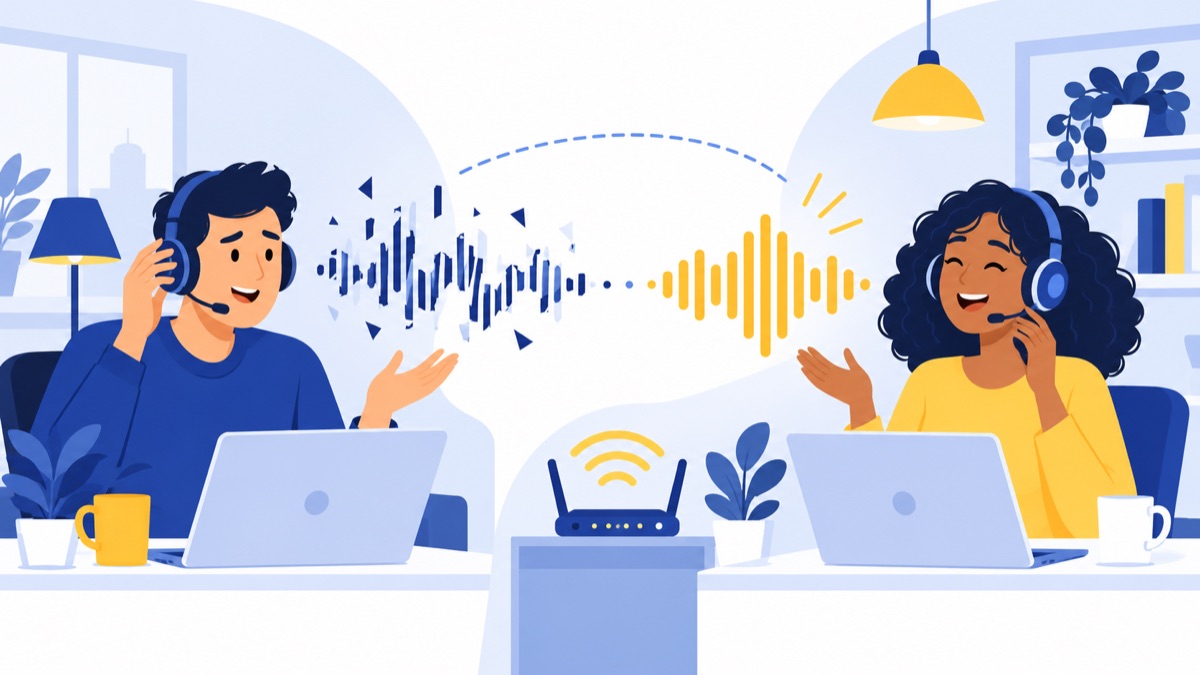
If you need a voip choppy audio fix, first find out who hears the problem and whether it affects one direction or both. Then test the headset, browser, and network one at a time. This guide gives you a symptom-first troubleshooting flow, browser-specific checks, and separate fixes for echo, one-way audio, and dropped calls.
Key takeaways
- Choppy or robotic speech can point to voice packets arriving late, out of order, or missing; echo, delay, one-way audio, and dropped calls need different checks.
- Testing another headset, device, supported browser, or wired Ethernet connection helps identify whether the problem is local or shared.
- A speed test measures throughput, but repeated call-time checks for upload stability, jitter, latency, and packet loss can give more useful clues.
- Avaya recommends jitter below 20 ms and lists packet loss below 3% for good quality; these are vendor guidelines, not universal guarantees.
- Browser callers should check site microphone permission, selected input and output devices, and competing apps before escalating.
What does choppy VoIP audio sound like?
Choppy VoIP audio usually means parts of speech are missing, clipped, or arriving unevenly; echo, delay, one-way audio, and full disconnections are distinct symptoms with different likely causes. Ask both people what they hear before changing settings, because that first check helps distinguish a microphone or speaker issue from a network or provider problem.
Choppy, clipped, or robotic speech
Words may break up, sound metallic, or disappear for a moment. Common causes include Wi-Fi interference, congestion, packet loss, or unstable upload. If one person hears the other clearly but receives broken speech in return, focus first on the connection and microphone path of the person whose voice sounds choppy.
Echo or delayed self-voice
Echo means someone hears their own voice repeated. It can happen when sound from a speaker re-enters a microphone; test with a headset and lower speaker volume on both ends. A delayed conversation feels like a pause between speaking and hearing a reply. That points more toward latency than missing or distorted sound associated with packet loss or jitter.
One-way audio or silence
If you hear the other caller but they cannot hear you, check whether your microphone is muted, whether the right input is selected, and whether the browser has microphone permission. If neither person hears audio, verify both input and output devices before investigating the network.
Call disconnects completely
A dropped call ends the connection rather than merely interrupting sound. Note the time and whether the disconnect happens after a consistent interval, only on Wi-Fi, or for several users. Those details can help your phone provider or IT team distinguish a local network issue from an account or service problem.
How do you troubleshoot choppy VoIP calls?
Use this VoIP troubleshooting flow to narrow down the likely cause before changing network settings. Start with the caller’s report, then isolate direction, device, network, and timing; after each test, place another call and note whether the symptom changed.
Who hears the problem?
├─ Only you → Check headset, selected devices, browser, and local connection
├─ Only the other caller → Check your microphone/input and upload path
└─ Both callers → Compare another call, device, or network; ask if issue is widespread

Does it affect one direction or both?
├─ One direction → Check that speaker or microphone path and its network route
└─ Both directions → Check Wi-Fi/LAN congestion, internet connection, or provider

Does another headset, device, browser, or network change it?
├─ Yes → The changed device, browser, or connection is a likely source
└─ No → Continue to timing and compare with another user or location

When does it happen?
├─ Busy periods only → Check competing uploads, downloads, and network congestion
└─ Every call → Record tests and escalate to IT or your VoIP provider
Can both people hear the problem?
If only one caller hears broken audio, first test that person’s headset and connection; if both callers hear it, test another call and ask whether coworkers are affected. A problem heard by multiple users on the same network suggests a shared network or service issue, while a problem isolated to one device points toward its audio setup or browser.
Does it affect one direction or both?
If one person’s voice is missing or distorted, investigate that speaker’s microphone and upload path; if both directions break up, look for shared Wi-Fi or internet congestion. For one-way audio, have the affected speaker check mute and input selection, then compare another headset and network.
Does another headset, device, browser, or network change it?
Change one thing at a time: keep the same call service and location while swapping the headset, then try another supported browser or device. A wired Ethernet test is especially useful: if speech clears up on Ethernet, Wi-Fi signal or interference is a strong suspect.
Does it happen only during busy periods or on every call?
If calls degrade when staff upload files, hold video meetings, or back up data, competing traffic may be filling the connection. If the issue happens on every call, across devices and networks, record the evidence and contact your phone provider; recurring problems across the office also merit an IT review.
What quick fixes should you try first?
The safest first fixes are to confirm audio-device selection, restart the browser or calling app, pause heavy transfers, and compare Wi-Fi with Ethernet. These steps isolate common causes without changing router settings. A generic speed test can show throughput but may miss brief disruptions that affect an active call.
Confirm microphone, speaker, and headset selection
Check the calling app’s input and output menus, plus your computer’s sound settings. Make a short test call after selecting the intended microphone and speaker. If a headset has its own mute switch or volume control, check those too.
Close competing apps and pause large transfers
Pause cloud backups, large uploads, downloads, and video streams during a test call. Upload traffic matters because your voice must travel from your device to the other caller. If quality improves when transfers stop, share that finding with your administrator.
Move closer to Wi-Fi or test with Ethernet
Move closer to the access point and make another call. If possible, connect by Ethernet and repeat the same test. A wired connection removes wireless signal and interference from the comparison, helping you decide whether to investigate Wi-Fi coverage.
Restart the browser or calling app and update it
Close and reopen the phone app or browser, then check for updates. Restarting can release a stuck audio device or browser resource. If the issue remains, try another browser supported by your calling service and note whether the result changes.
How do you check VoIP jitter, latency, packet loss, and bandwidth?
Check call quality during more than one active call, and compare upload and download behavior alongside jitter, latency, and packet loss. A speed test reports how much data can move at that moment; it does not guarantee steady delivery of small voice packets while other apps compete for the connection.

What do the metrics mean?
- Jitter is variation in the time voice packets take to arrive. Uneven arrival can make words sound broken when the receiving system cannot smooth over the gaps.
- Latency is the time a packet takes to travel from sender to receiver; high latency is usually felt as conversational delay. The FCC defines latency and jitter as average packet travel time and average variation in packet delay, respectively.
- Packet loss means some voice data never reaches the other side, which can cause gaps or clipped speech.
- Bandwidth is the connection’s capacity to carry data. Congestion occurs when devices compete for that capacity, and a brief upload bottleneck can affect speech even if a later speed test looks fast.
The FCC’s 2024 report set a fixed broadband benchmark of 100 Mbps download and 20 Mbps upload. That is an availability benchmark, not a minimum VoIP requirement or a call-quality threshold; your call experience also depends on stability and competing traffic. See our guide to VoIP bandwidth requirements and network testing for a practical way to estimate demand.
How should you test during a call?
If your phone service provides a call-quality report, run it during a problem call and note the time, upload and download results, jitter, latency, and packet loss. Repeat during a clear call for comparison. Without a built-in report, compare calls with and without large transfers, and test Wi-Fi against Ethernet.
Are there universal quality thresholds?
No single number guarantees good audio across every codec, provider, or measurement method. Avaya’s network assessment guidance recommends jitter below 20 ms and lists packet loss below 3% for good quality and below 1% for toll quality. Treat those as diagnostic rules of thumb, not universal pass/fail limits.
How do you fix choppy audio in a browser-based phone system?
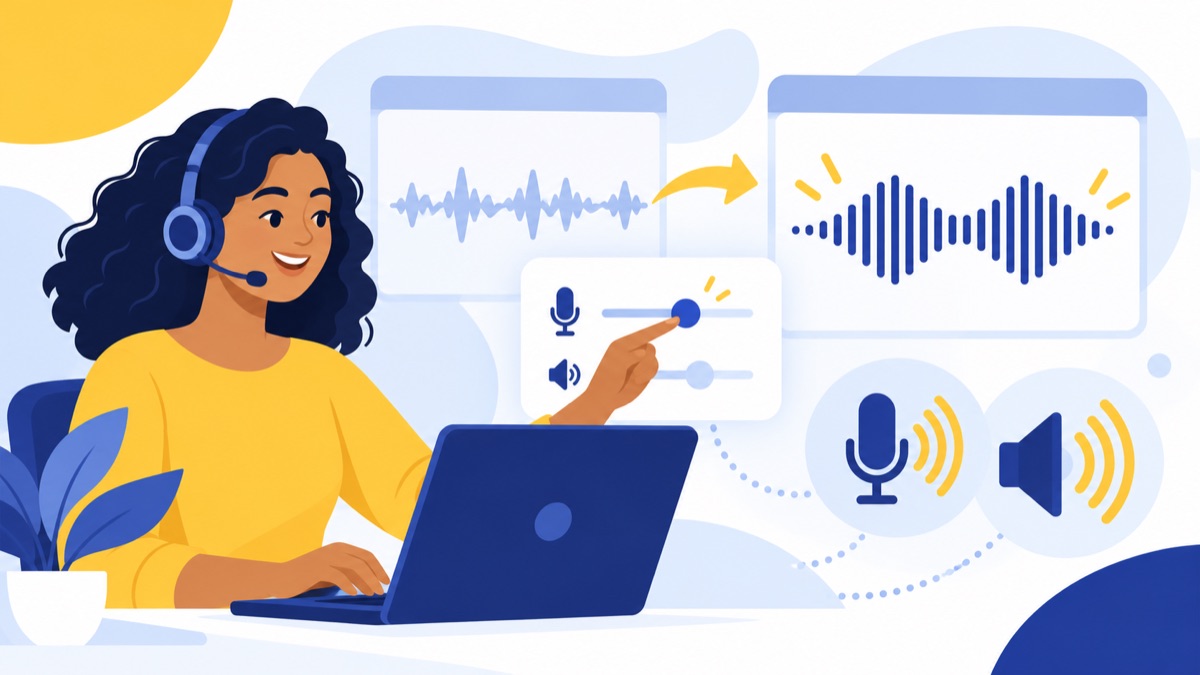
For browser calling, check microphone permission and device selection before treating silence as a network fault. Then close apps and tabs that may use audio or consume system resources, restart and update the browser, and test another supported browser. If the microphone works elsewhere but call audio still fails, compare networks.
How do you allow microphone access for the calling site?
In Chrome, check the calling site’s microphone permission in site settings. Google explains how to manage microphone permissions for individual sites, and its Meet troubleshooting guidance also identifies microphone permission as a requirement for browser calls. After changing permission, reload the calling page and test again.
How do you select the correct input and output devices?
Choose the intended microphone and speakers in both the calling service and your operating system. A browser may use a different input than your computer’s default, especially after you connect a headset. Confirm that the microphone meter responds when you speak.
How do you check browser, operating-system, and headset settings?
Make sure the microphone is not muted in the calling page, headset controls, or operating system. Close other apps that may hold the microphone, and close resource-heavy tabs before testing again. Restart the browser if the selected device is not responding.
When should you test another supported browser?
Try another browser only if your phone provider supports it, and keep the same headset and network for a useful comparison. If the second browser works, update or review settings in the first. If both browsers fail on the same network but work elsewhere, the network is the stronger lead.
How do you fix echo, one-way audio, and dropped calls?
Echo, one-way audio, and dropped calls are distinct problems, so use a fix that matches the symptom. Test echo with headsets and lower speaker volume; check microphone and upload paths for one-way audio; and record disconnect timing and affected users for recurring drops.
How do you fix echo on a VoIP call?
For a VoIP echo fix, switch from speakerphone to a headset and reduce speaker volume. Ask the other caller to do the same, since echo can be introduced at either end. If the echo appears only with one device, inspect that device’s microphone and audio settings.
How do you troubleshoot one-way audio?
Check mute, site permission, input selection, and microphone operation in another app. Then test another browser or network. If your microphone works outside calls but callers still cannot hear you, give your provider the call time and results; avoid changing firewall or SIP settings unless your IT administrator directs you.
How should you investigate dropped calls?
Record the time each call disconnects and whether the drop occurs for one user, all users on one network, or users in several locations. Test another device or connection if available. Recurring drops across networks should go to your phone provider; drops isolated to the office network should also go to IT.
When should you contact IT, your ISP, or your VoIP provider?
Contact IT when several coworkers on the same office network are affected, and contact your VoIP provider when the issue follows users across devices or networks. Contact your ISP if wired tests show recurring problems with the internet connection itself. A clear record of symptoms and test results makes any escalation more useful.
Before you report the issue, record:
- Call date and time, including time zone
- Affected users and whether the other caller heard the problem
- Device, operating system, browser or app, and headset
- Network type and location, such as office Wi-Fi, home Wi-Fi, or Ethernet
- Symptom: choppy speech, echo, one-way audio, or a dropped call
- Call direction and whether one or both callers were affected
- Results from another device, browser, network, or call-quality report
If you are evaluating a business phone service, compare browser support, troubleshooting tools, and support options in our business VoIP phone system guide. Voicalyst’s virtual phone system is one option for teams looking for a browser-based business phone system.
How can you prevent recurring VoIP audio problems?
Keep browsers and calling devices updated, reduce unnecessary network traffic during calls, and improve Wi-Fi coverage where staff work. If problems recur during busy periods, ask an administrator to review network capacity and QoS. Return to the troubleshooting flow when a symptom changes, since echo, one-way audio, and packet-related choppiness call for different tests.
QoS, or Quality of Service, is a router or network setting that can prioritize voice traffic when a connection is busy. An administrator can assess whether it fits your network and provider requirements; labels and configurations vary by equipment. Don’t change firewall or SIP settings as a general fix without guidance from IT or your phone provider.
For a recurring issue, keep the escalation checklist and compare affected and unaffected calls. If your team is considering a browser-based phone system, review Voicalyst’s plans alongside your support and network needs.
Frequently Asked Questions
Why is my VoIP audio choppy or robotic?
Choppy or robotic VoIP speech often means voice packets are arriving late, out of order, or missing. Common causes include Wi-Fi interference, a congested upload, packet loss, or a headset or browser problem. Check whether both callers hear the issue, then compare a different headset, device, or wired network to help isolate it.
Can Wi-Fi cause VoIP calls to drop or sound choppy?
Yes. Weak signal, interference, or competing Wi-Fi traffic can disrupt real-time voice even when a speed test shows a high download rate. Move closer to the access point and compare a call over wired Ethernet. If Ethernet improves the call, focus on Wi-Fi coverage or congestion before changing phone settings.
What are acceptable jitter, latency, and packet-loss levels for VoIP?
There is no universal threshold that guarantees clear calls because codecs, providers, and measurement methods differ. As one vendor reference, Avaya recommends jitter below 20 ms and lists packet loss below 3% for good quality and below 1% for toll quality. Treat those as diagnostic guidance, not a promise.
Why can I hear the other person but they cannot hear me?
If you hear the other person but they cannot hear you, first check your microphone mute state, selected input device, and browser microphone permission. Then test another headset or supported browser. If the microphone works elsewhere but your voice still does not reach callers, share the call time and test results with your VoIP provider or IT team.
How do I fix echo on a VoIP call?
Lower speaker volume and test with a headset instead of speakerphone. Echo can happen when sound from a speaker re-enters a microphone, sometimes at the other caller’s end. Ask both people to try a headset; if echo persists across devices and calls, report which side hears it and when.
Why do VoIP calls drop even when my internet speed is good?
A speed test measures throughput at one moment; it does not rule out brief congestion, unstable upload, packet loss, Wi-Fi interference, or a provider-side problem. Record when calls disconnect and whether multiple devices or users are affected. Repeated drops across networks are useful evidence to share with your VoIP provider.
How do I troubleshoot microphone and speaker problems in a browser phone system?
Check that the calling site has microphone permission, then select the intended microphone and speaker in the phone system and operating system. Close apps or tabs using audio, restart and update the browser, and test another supported browser. If audio devices work elsewhere but calls fail, compare another network to help isolate delivery problems.